Основы работы Nextcloud Talk
Nextcloud Talk позволяет общаться и проводить видеозвонки на собственном сервере.
Chats and calls take place in conversations. You can create any number of conversations. There are several kinds of conversations:
1. One-on-one conversations. This is where you have a private chat or call with another Talk user. You can’t add other people to this conversation or share it with a link. You start a direct one-on-one chat by looking for another user in the search bar and then clicking their name. If a user becomes unavailable for long period and set an out-of-office status, you will find additional information in this conversation, such as provided description, absence date, or their replacement person.
Групповые разговоры. Помимо человека, создавшего разговор, в групповом разговоре может участвовать любое количество людей. Групповая беседа может быть доступна по ссылке, чтобы внешние пользователи могли присоединиться к разговору. Она также может содержать список, чтобы другие пользователи на вашем сервере Nextcloud могли присоединиться к разговору.
Note to self. This is a special conversation with yourself. You can use it to write message notes, create to-do lists or forward content to save.
Создание чата
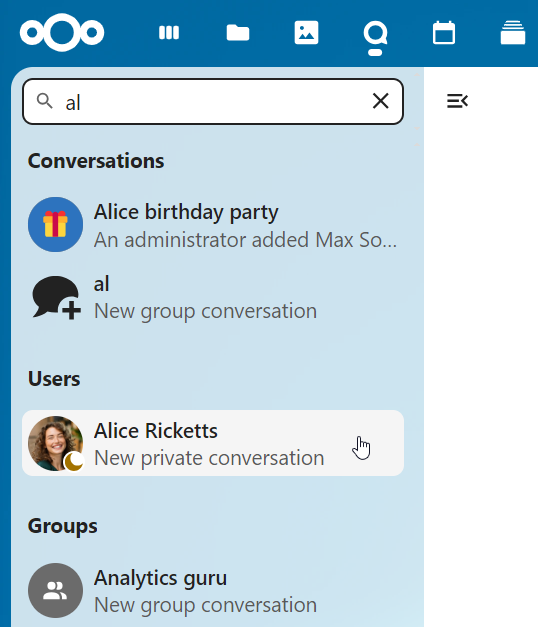
You can create a direct, one-on-one chat by searching for the name of a user, a group or a team and clicking it. For a single user, a conversation is immediately created and you can start your chat. For a group or circle you get to pick a name and settings before you create the conversation and add the participants.
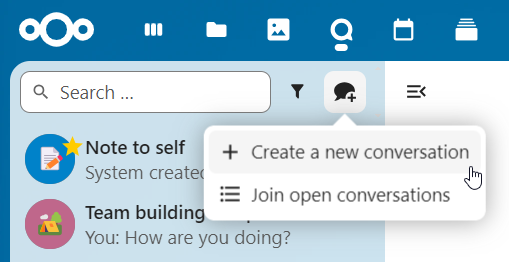
If you want to create a custom group conversation, click the button next to the search field and filters button and then on Create a new conversation.
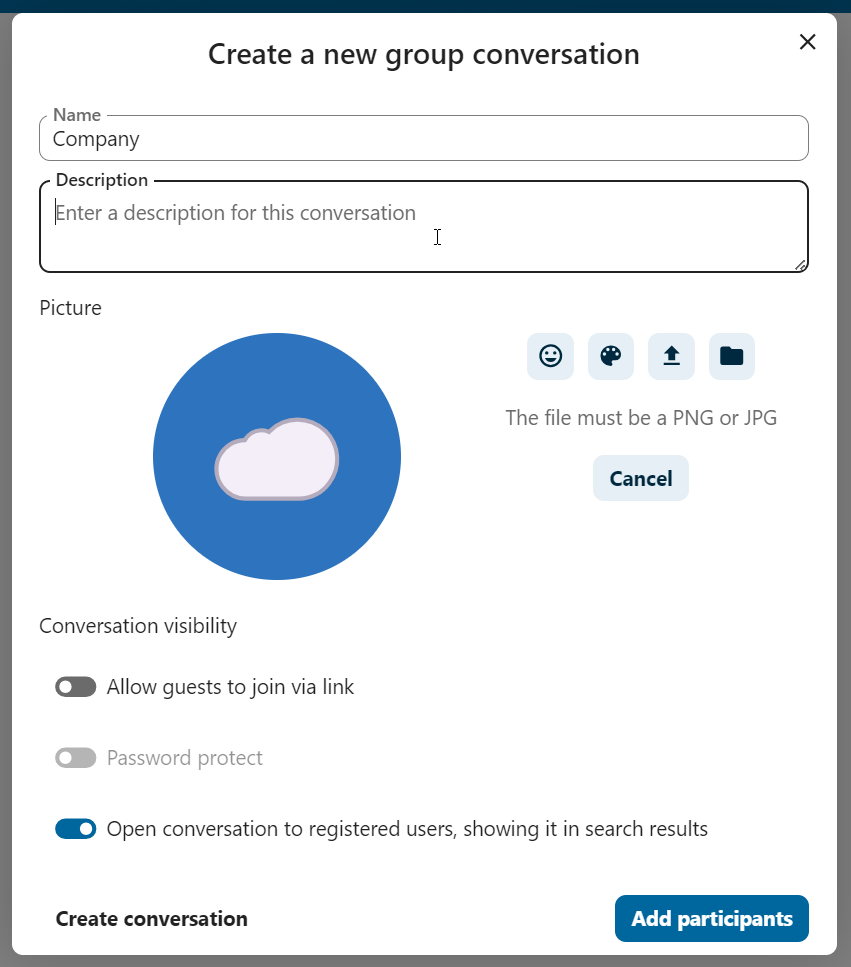
Вы можете выбрать название для беседы, добавить описание и настроить для нее аватар (с загруженной фотографией или эмодзи), а также выбрать, должна ли беседа быть открыта для внешних пользователей и могут ли другие пользователи на сервере видеть беседу и присоединяться к ней.
На втором этапе вы можете добавить участников и завершить создание беседы.
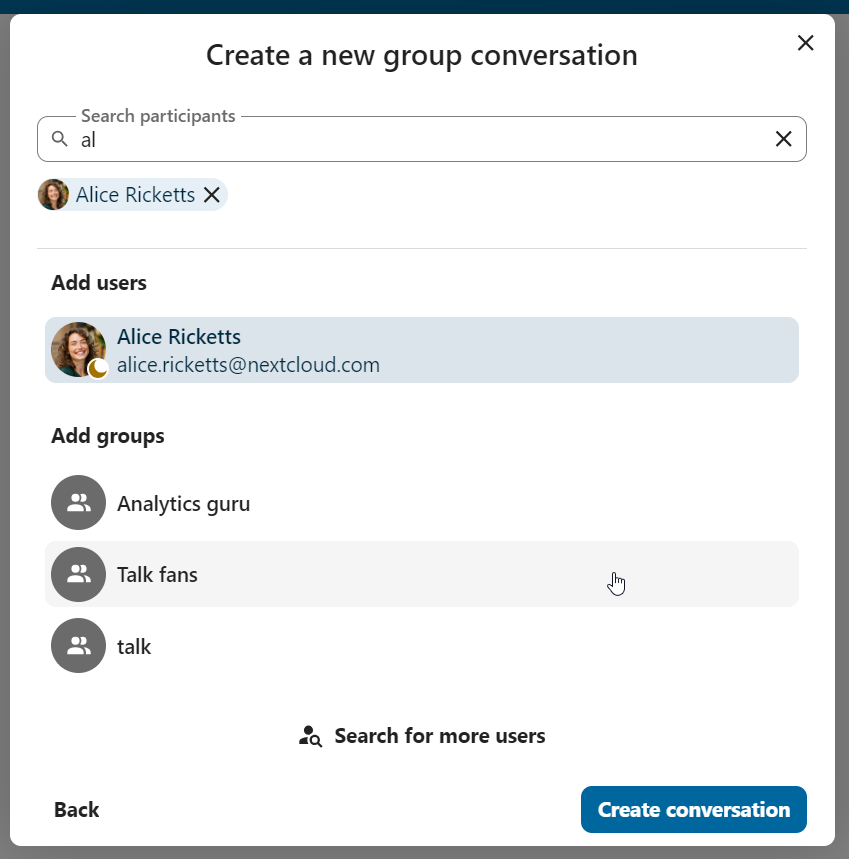
After confirmation you will be redirected to the new conversation and can start communicating right away.
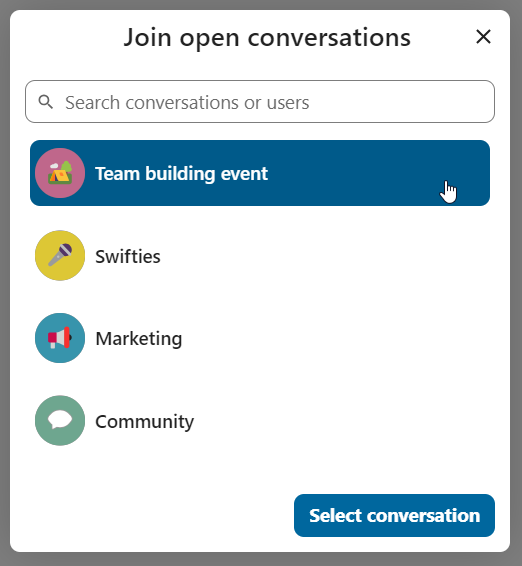
Увидеть все открытые разговоры
You can view all the conversations that you can join by clicking the button next to the search field and filters button and then on Join open conversations.
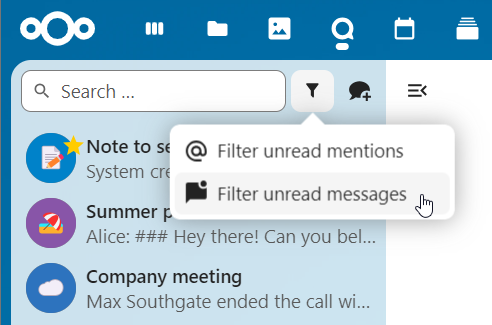
Отфильтруйте ваши разговоры
Вы можете отфильтровать свои переписки с помощью кнопки фильтр, расположенной рядом с полем поиска. Существует два варианта фильтрации: 1. Фильтровать непрочитанные упоминания: этот вариант позволяет просматривать групповые переписки с непрочитанными упоминаниями или непрочитанные личные беседы. 2. Фильтровать непрочитанные сообщения: эта опция позволяет просматривать все непрочитанные сообщения во всех присоединенных беседах.
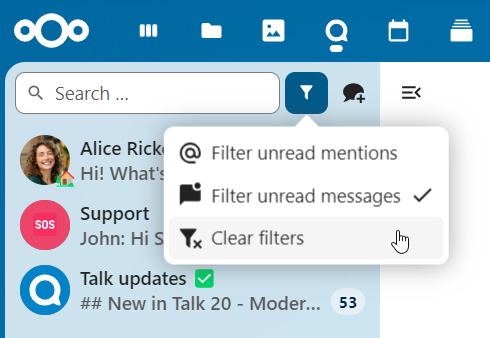
Потом вы можете сбросить фильтр через меню фильтра.
Archive conversations
You can archive conversations that you no longer need to see in your main conversation list. When a conversation is archived, it will be moved to the Archived conversations section.
An archived conversation will not appear in your main conversation list, but it will still align with notification level set in its settings.
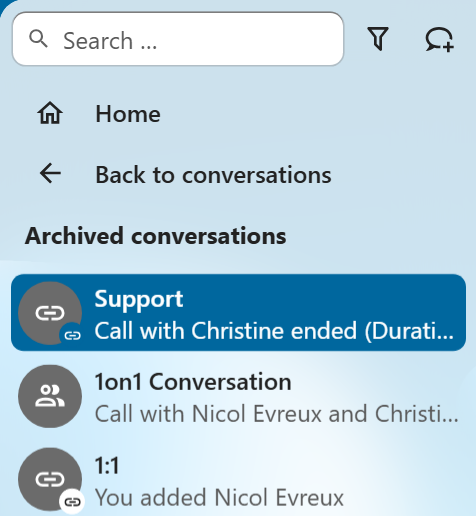
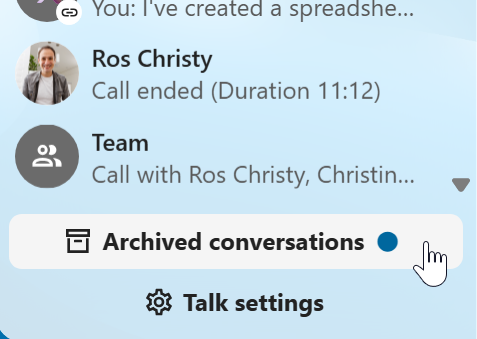
The list is accessible from the button at the bottom of the navigation bar.
Обмен файлами в чате
Вы можете обмениваться файлами в чате 3 способами.
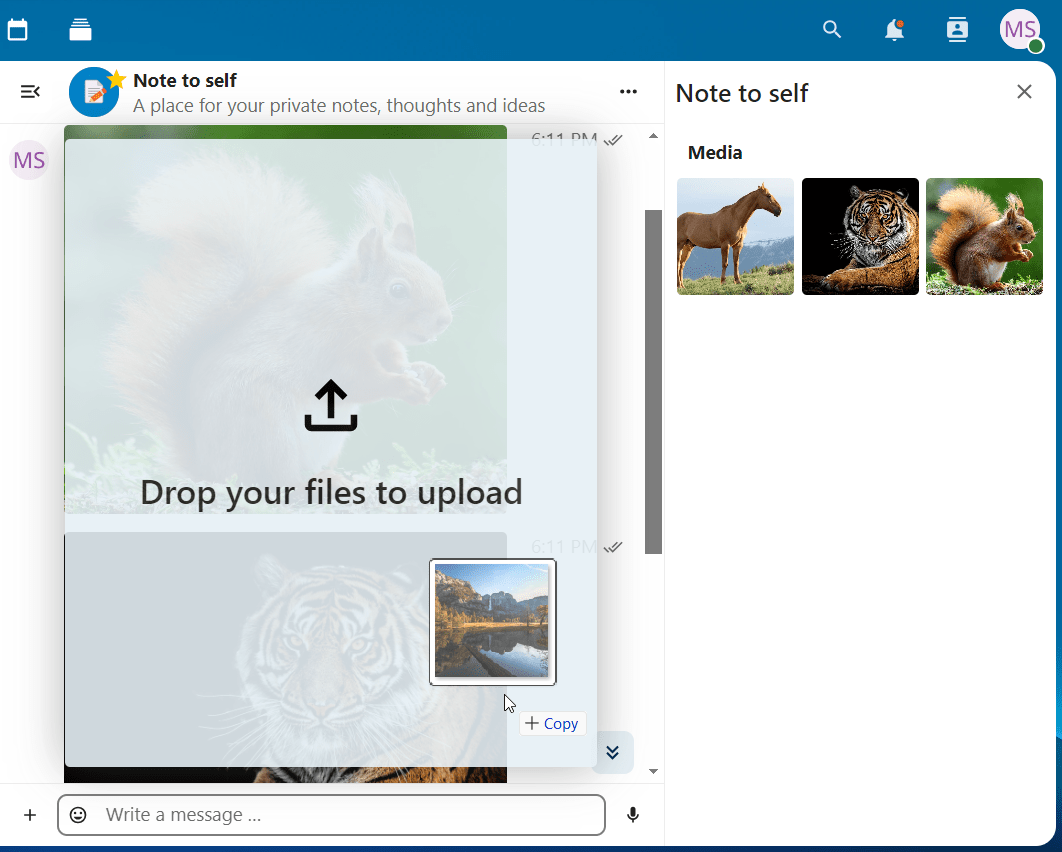
Во-первых, вы можете просто перетащить их в чат.
Во-вторых, вы можете выбрать файл из своих файлов Nextcloud Files или из файлового менеджера, выбрав маленькую скрепку и указав, откуда вы хотите взять файл.
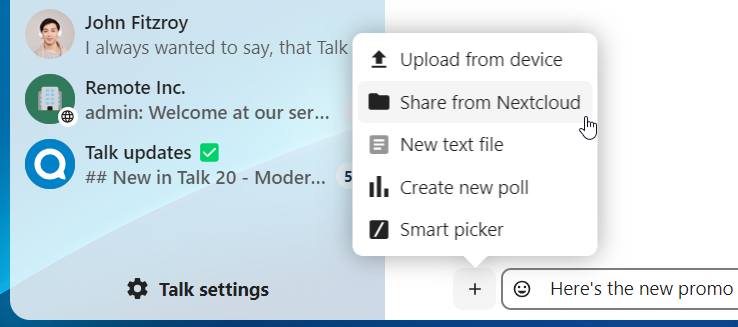
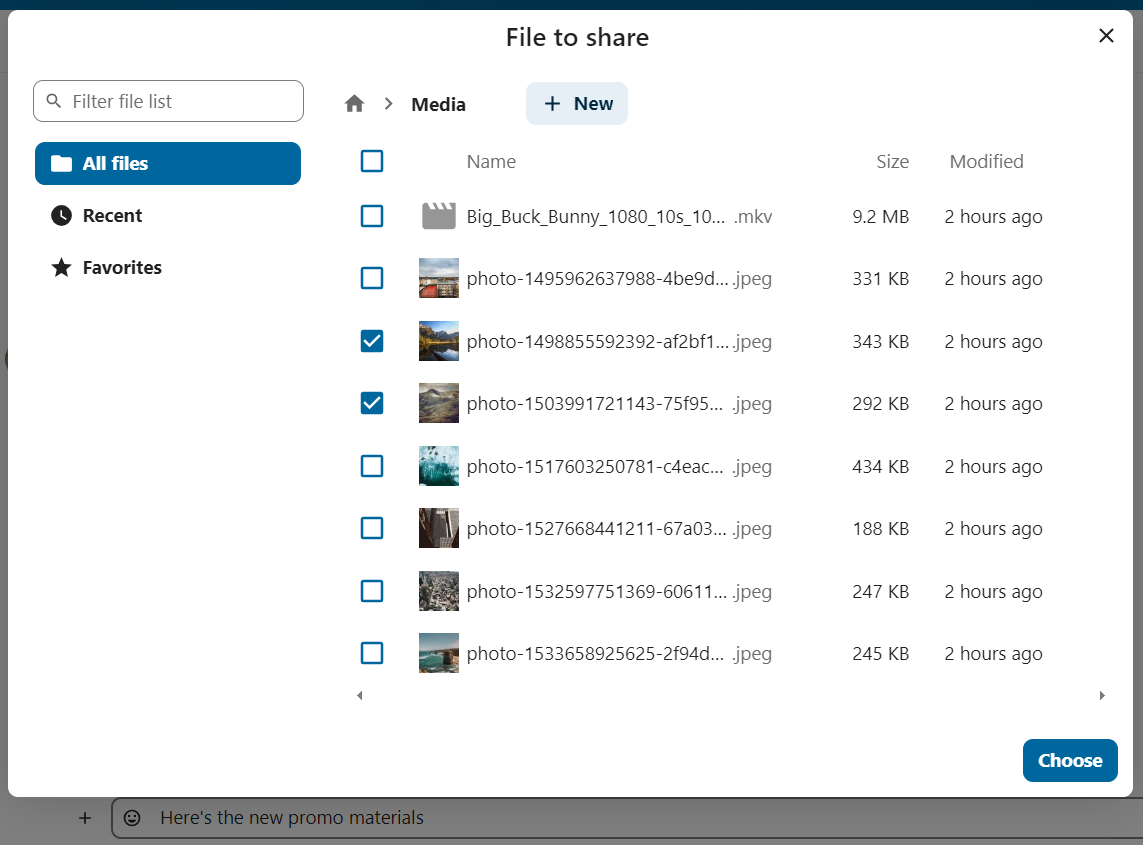
You can add more files until you are done and decide to share the files. You can also add a text caption to your shared files, providing a brief description or context.
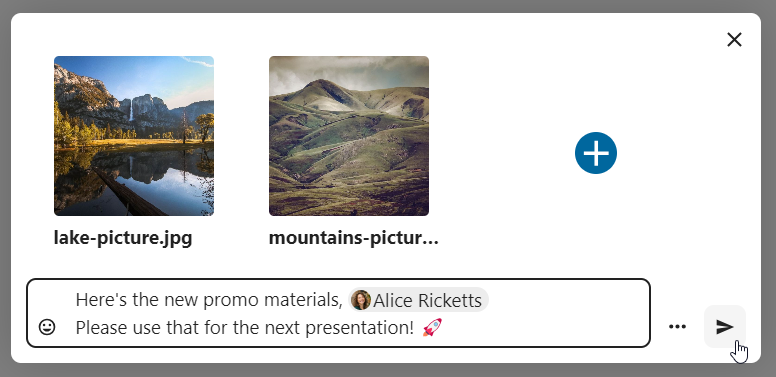
Все пользователи смогут нажимать на файлы для просмотра, редактирования или загрузки, независимо от наличия у них учётной записи. Пользователи с учётной записью автоматически получают доступ к файлам, в то время как внешние гостевые пользователи получают их в виде общедоступной ссылки.
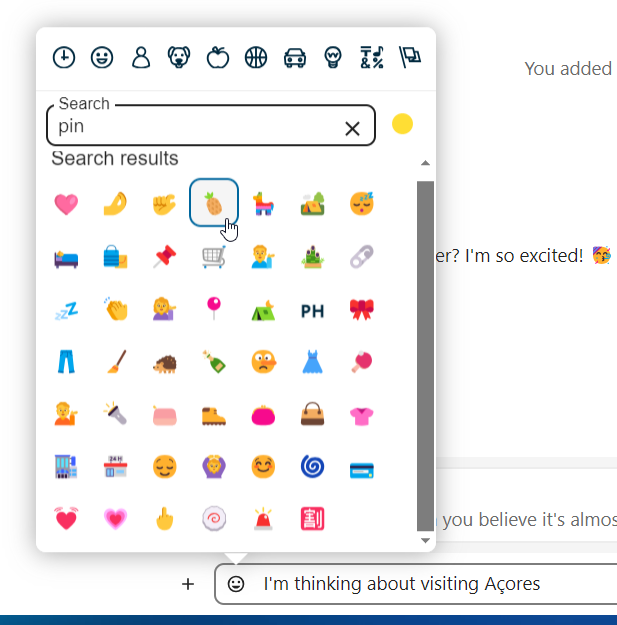
Вставка эмодзи
Вы можете добавить эмодзи с помощью переключателя, расположенного слева от поля ввода текста.
Smart Picker
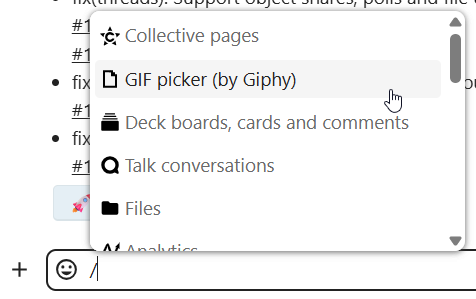
Smart picker shortcut makes it easier to insert links, files, or other content into your conversations. Just choose the type of content you want to insert (files, Talk conversations, Deck cards, GIFs, etc.) You can also type / in the chat input to open the selector.
Editing messages
You can edit messages and captions to file shares up to 6 hours after sending.

Using Markdown
You can enhance your messages with a markdown syntax support. See list for usage:
Headings and dividers
# Heading 1
## Heading 2
### Heading 3
#### Heading 4
##### Heading 5
###### Heading 6

Heading
===
Normal text
***
Normal text
Inline decorations
**bold text** __bold text__
*italicized text* _italicized text_
`inline code` ``inline code``
```
.code-block {
  display: pre;
}
```
Lists
1. Ordered list
2. Ordered list

* Unordered list
- Unordered list
+ Unordered list
Quotes
> blockquote
second line of blockquote
Task lists
- [ ] task to be done
- [x] completed task
Tables
Column A | Column B
-- | --
Data A | Data B
Polls in chat
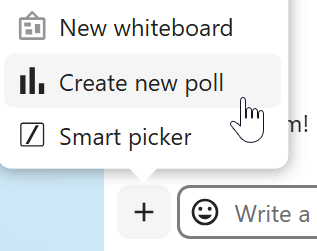
You can create a poll in groups chats from the new message additional actions.
A poll has two settings:
Anonymous polls: Participants cannot see who voted for which option.
Allow multiple choices: Participants can select more than one option.
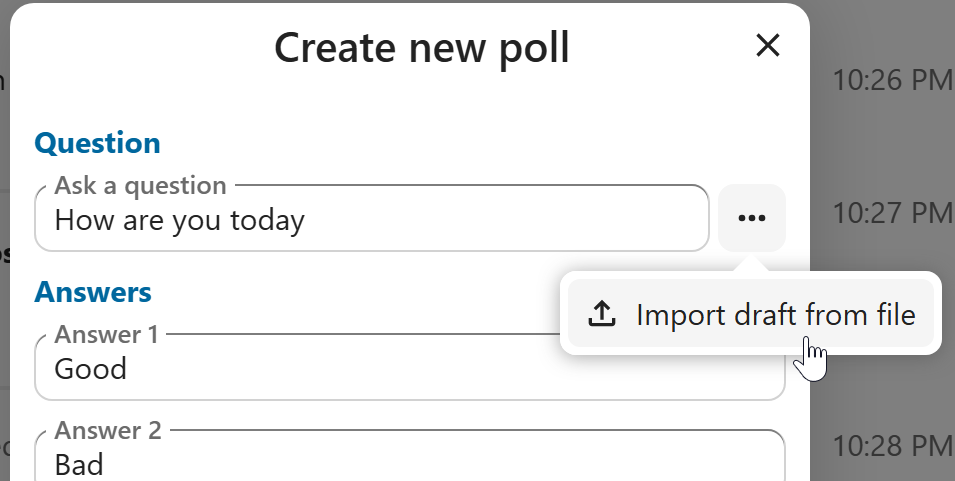
You can also import polls for auto-fill and export polls as JSON files to save it locally.
Closing poll is possible from the poll dialog.
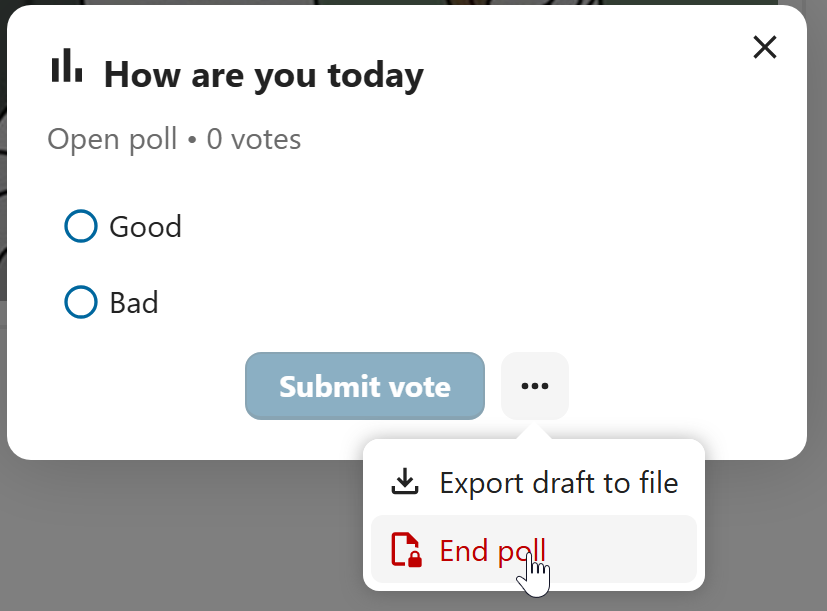
As a moderator, you can create the poll directly or you can save it as a draft to edit it later.
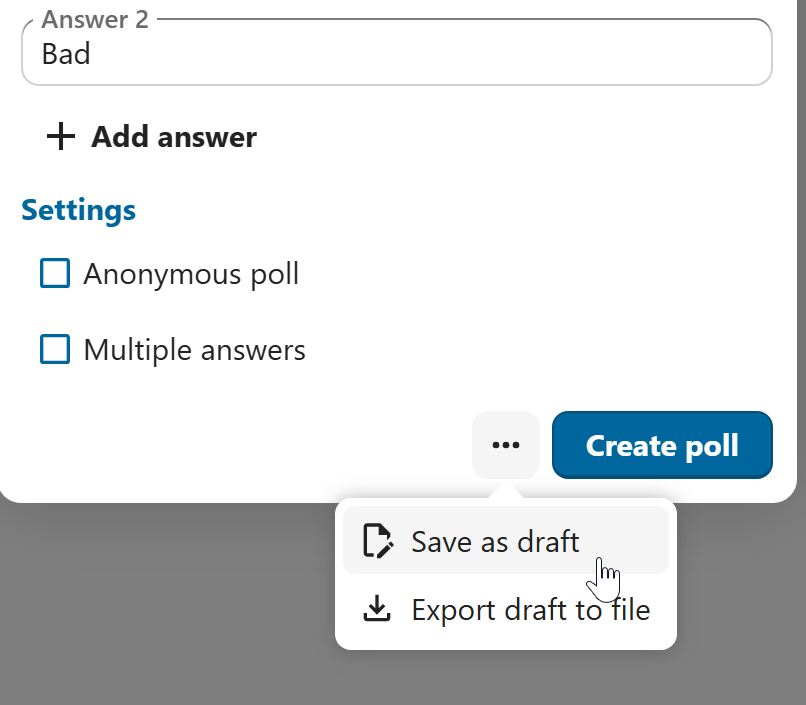
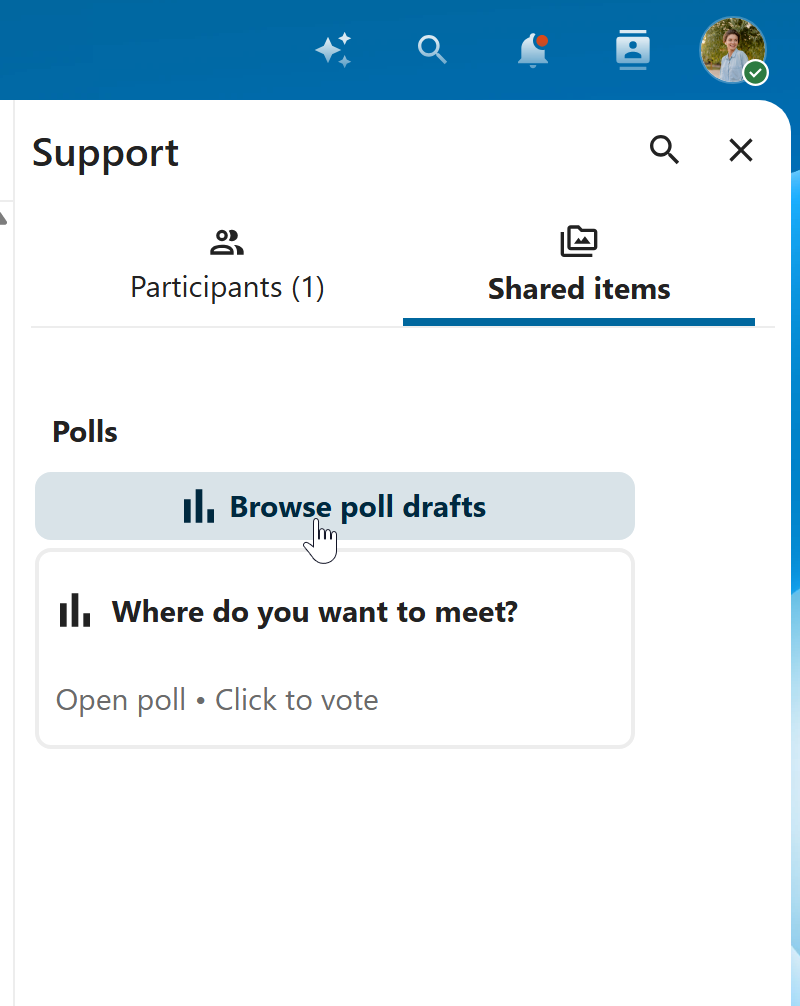
You can find poll drafts in Shared items tab or next to the poll title input field.
Setting reminder on messages
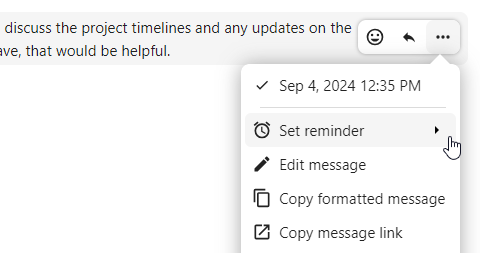
You can set reminders on specific messages. If there’s an important message you want to be notified about later, simply hover over it and click on the reminder icon.
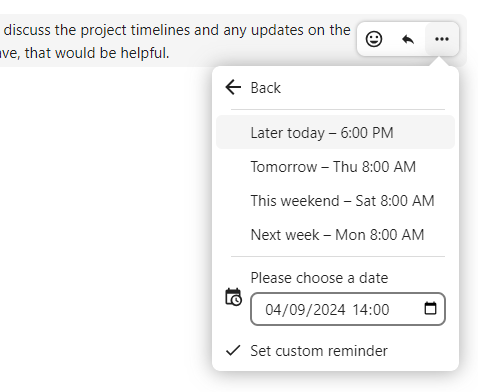
In the submenu, you can select an appropriate time to receive a notification later.
Ответы на сообщения и многое другое
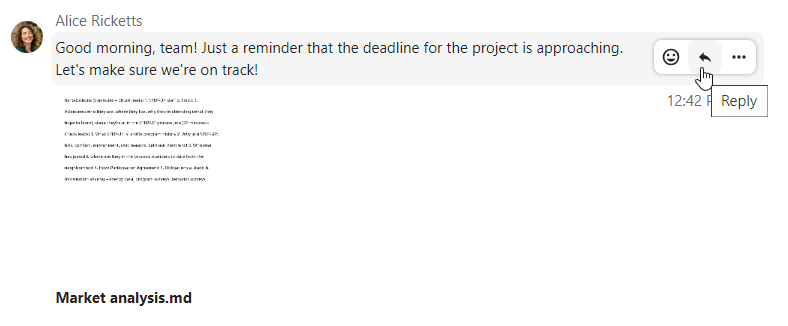
Ответить на сообщение можно с помощью стрелки, которая появляется при наведении на сообщение.
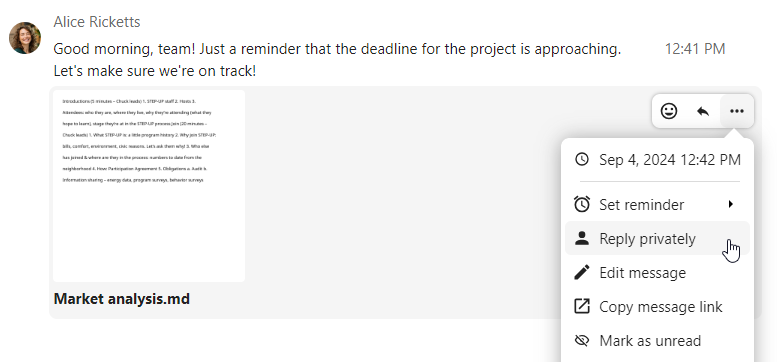
В меню с тремя точками``…`` вы также можете выбрать ответ в приватном режиме. При этом откроется чат один на один.
Здесь вы также можете создать прямую ссылку на сообщение или пометить его непрочитанным, чтобы вернуться к нему в следующий раз, когда вы войдёте в чат. Если это файл, то вы можете просмотреть его в разделе Файлы.
Silent messages
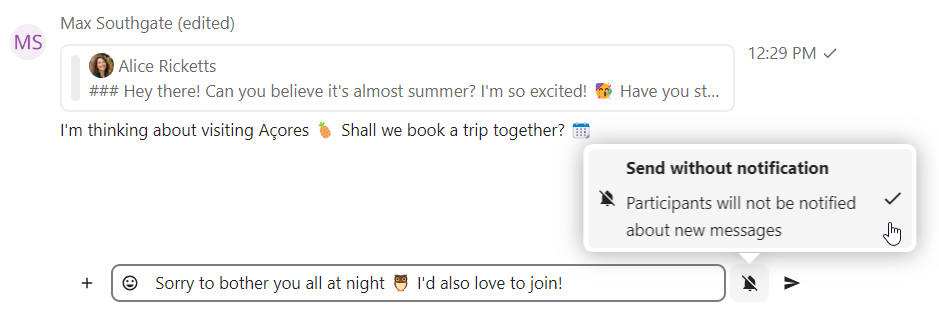
If you don’t want to disturb anyone in the middle of the night, there is a silent mode for chatting. While it is enabled, other participants will not receive notifications from your messages.
Управление беседой
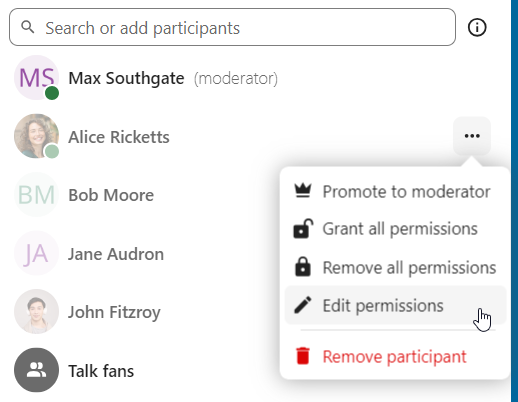
Вы всегда являетесь модератором в новой беседе. В списке участников вы можете повысить статус других участников до модераторов с помощью меню ... справа от их имени пользователя, назначить им настраиваемые разрешения или удалить их из беседы.
Изменение разрешений пользователя, присоединившегося к общедоступной беседе, также навсегда добавит его в беседу.
Модераторы могут настроить переписку. Выберите Настройки переписки из ... меню переписки вверху, чтобы получить доступ к настройкам.
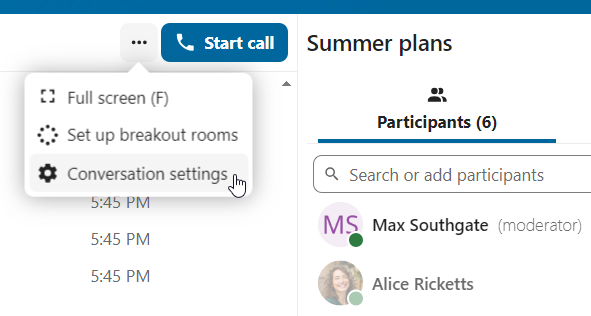
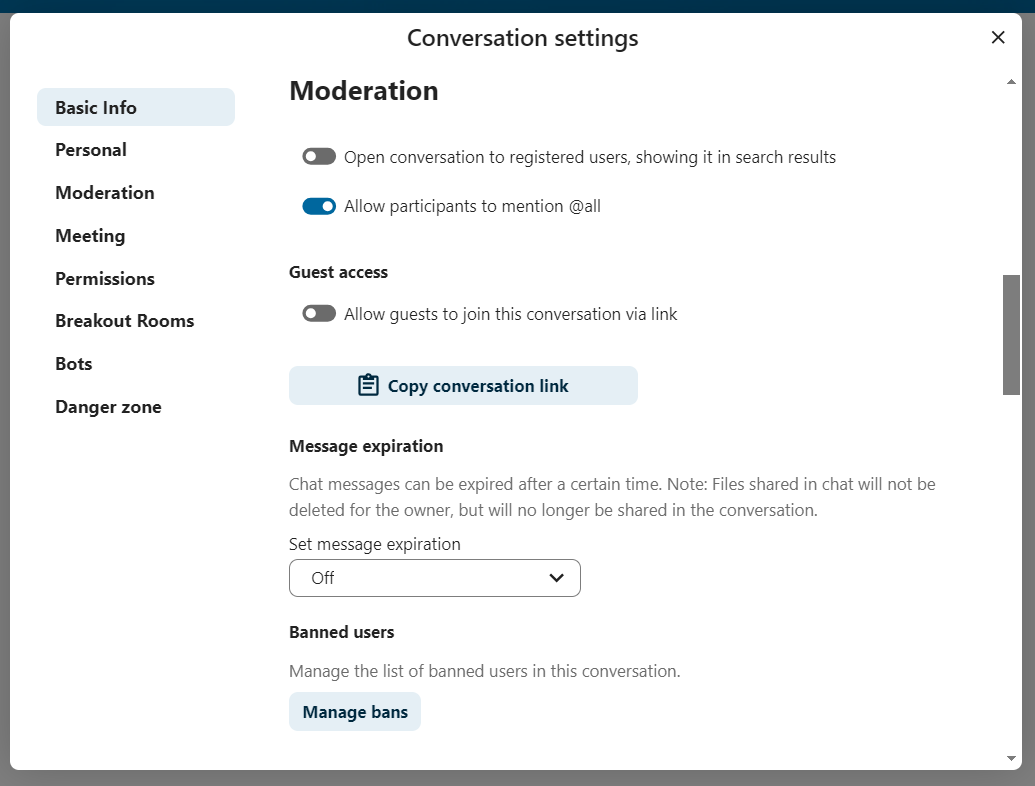
Здесь вы можете настроить описание, гостевой доступ, если беседа видима для других пользователей сервера и многое другое.
Ban participants
To help keep discussions safe and under control, moderators can ban participants from conversations. It could be internal users or guests (in this case their IP-addresse will additionally be banned).
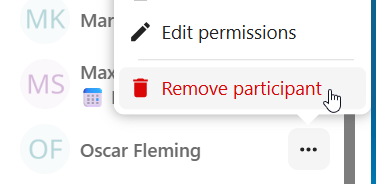
In the participants list, select the user or guest you, and click Remove participant.
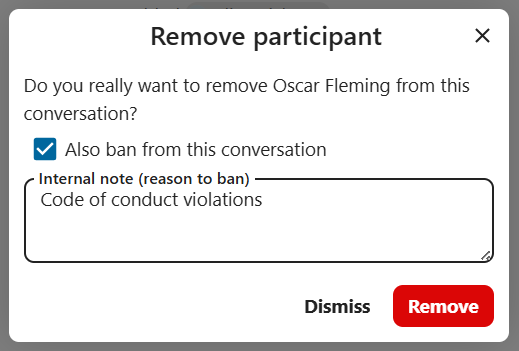
There, toggle checkbox Also ban from this conversation and provide a reason for the ban. The banned user will be removed and prevented from rejoining.
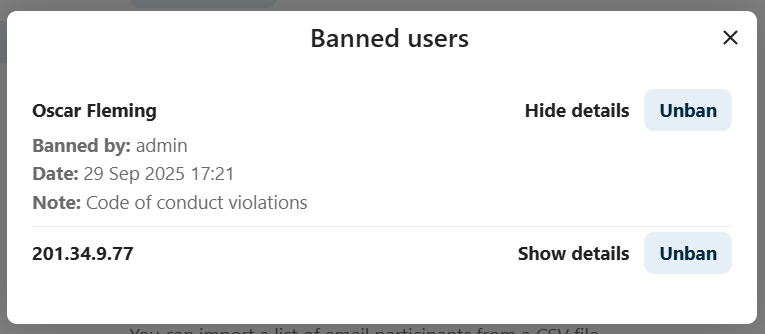
You can later find the list of banned users in the Moderation section of conversation settings.
Here, you can see the reason for the ban and revert it if needed.
Messages expiration
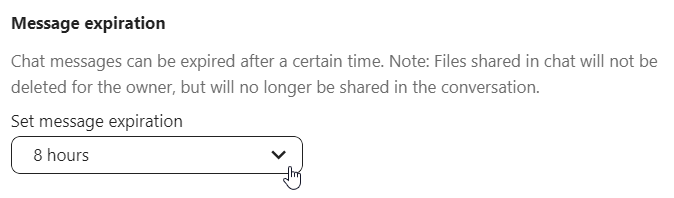
A moderator can configure message expiration under the Conversation settings within the Moderation section. Once a message reaches its expiration time, it is automatically removed from the conversation.
The available expiration durations are 1 hour, 8 hours, 1 day, 1 week, 4 weeks, or never (which is the default setting).
Начало вызова
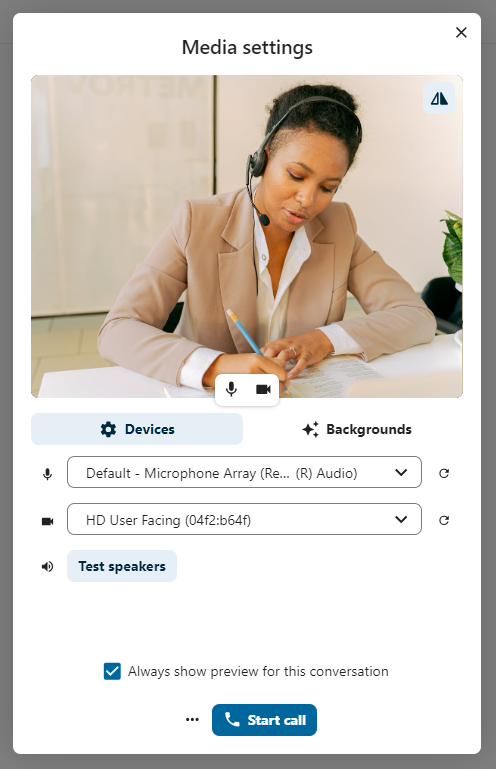
Во время разговора вы можете начать разговор в любое время, нажав кнопку Начать разговор. Другие участники получат уведомление и смогут присоединиться к разговору.
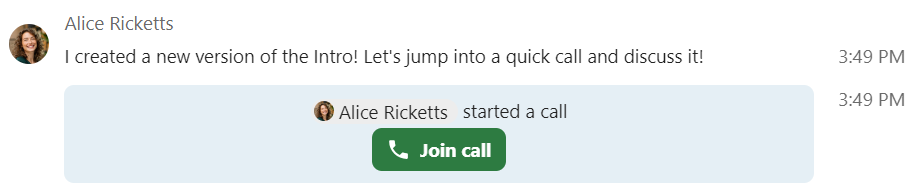
Если кто-то другой уже начал вызов, кнопка изменится на зеленую Присоединиться к вызову`.
Во время вызова вы можете отключить микрофон и выключить видео с помощью кнопок на видео внизу справа или с помощью сочетаний клавиш M для отключения звука и V для отключения видео. Вы также можете использовать пробел для отключения звука. Если вы отключили звук, нажатие пробела отключит звук, и вы сможете говорить, пока не отпустите пробел. Если вы отключили звук, нажатие пробела отключит звук, пока вы не отпустите пробел.
Вы можете скрыть видео (полезно при совместном использовании экрана) с помощью маленькой стрелки, расположенной над видеопотоком. Включите видео обратно с помощью маленькой стрелки.
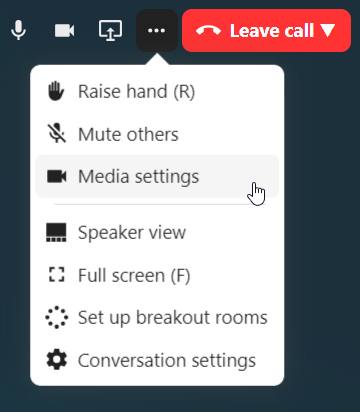
Вы можете получить доступ к настройкам и выбрать другую веб-камеру, микрофон и другие настройки в меню ... в верхней панели.
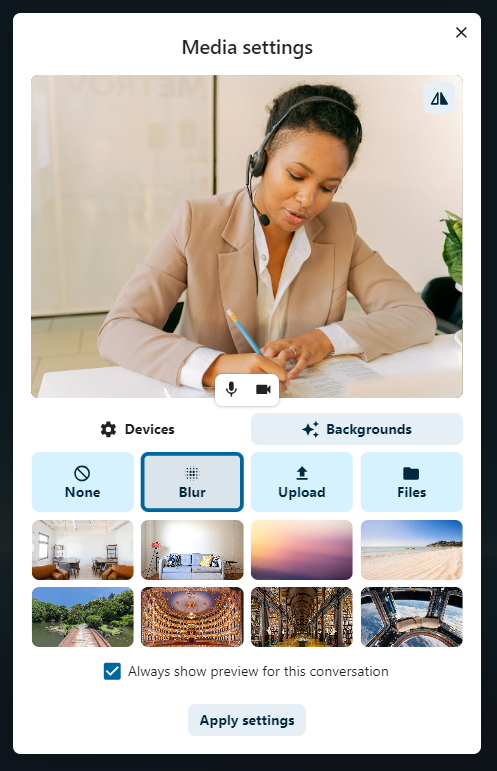
From media settings dialog, you can also change the background of your video.
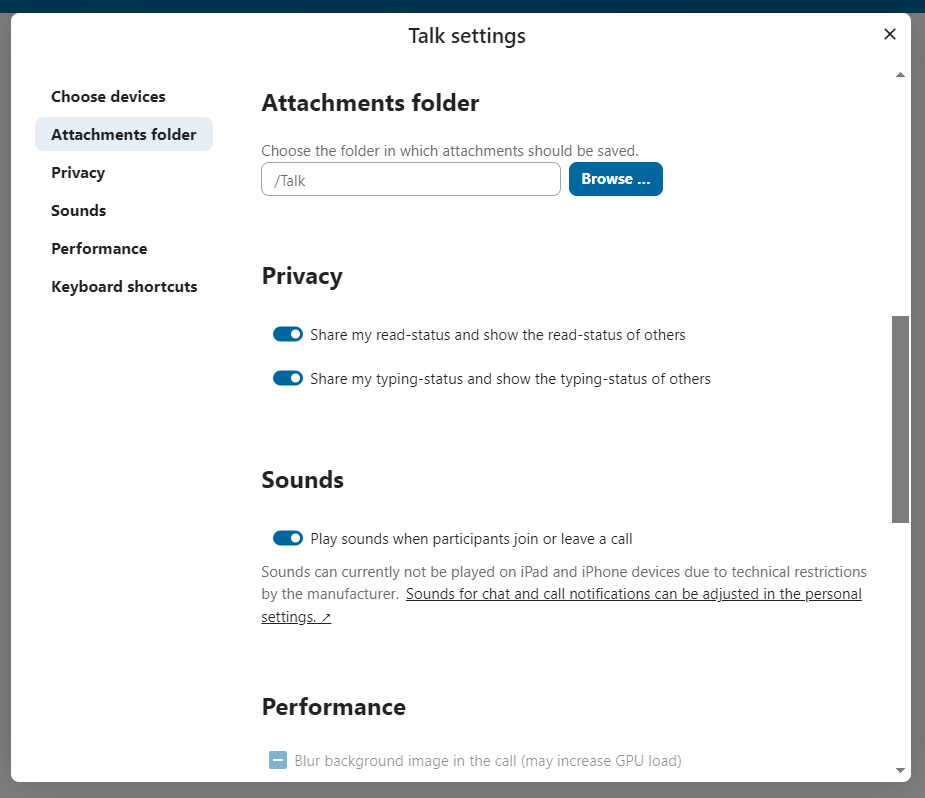
Вы можете изменить другие настройки в диалоговом окне «Настройки разговора».
Запуск общего доступа к экрану
You can click the monitor icon on your video stream to share your screen. Depending on your browser, you will get the option to share a monitor, an application window or a single browser tab. If video from your camera is also available, other participants will see it in a small presenter view next to the screen share.
Изменение вида во время вызова
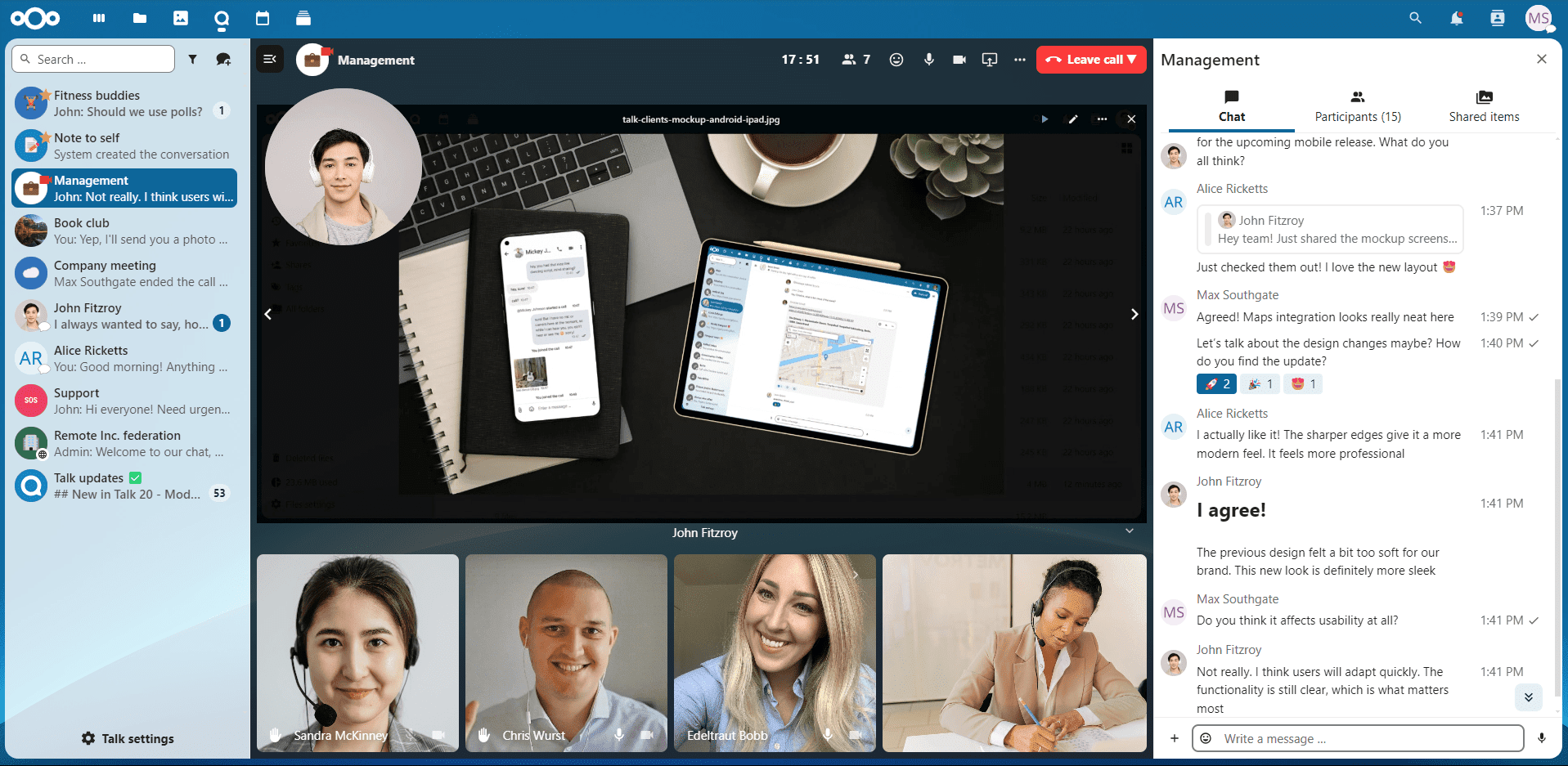
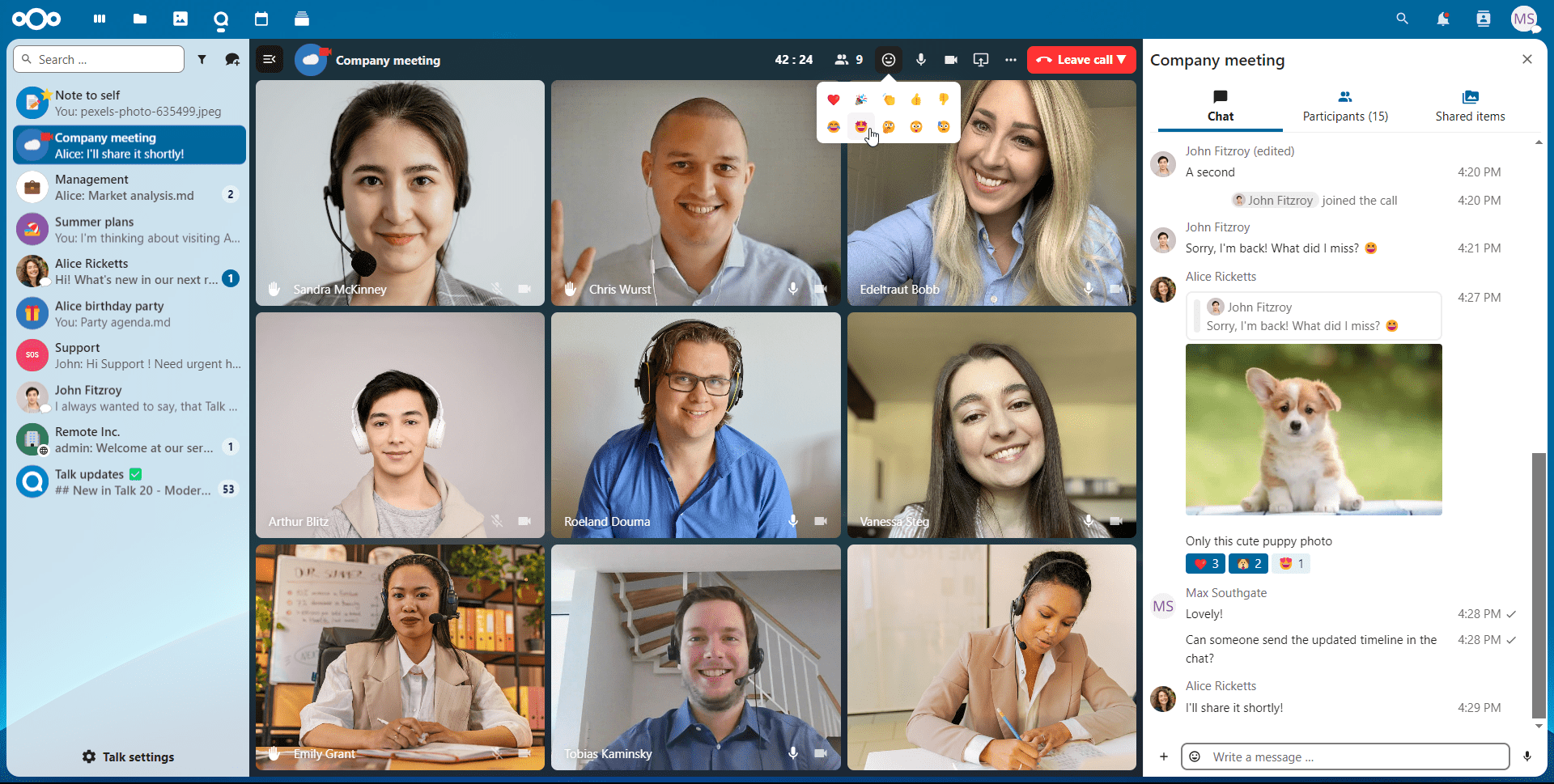
Вы можете переключать вид во время разговора с помощью маленького значка с четырьмя блоками в правом верхнем углу между видом с продвижением и видом сетки. Вид сетки покажет всех одинаково крупно, а если люди не помещаются на экране, слева и справа появятся кнопки, позволяющие перемещаться.
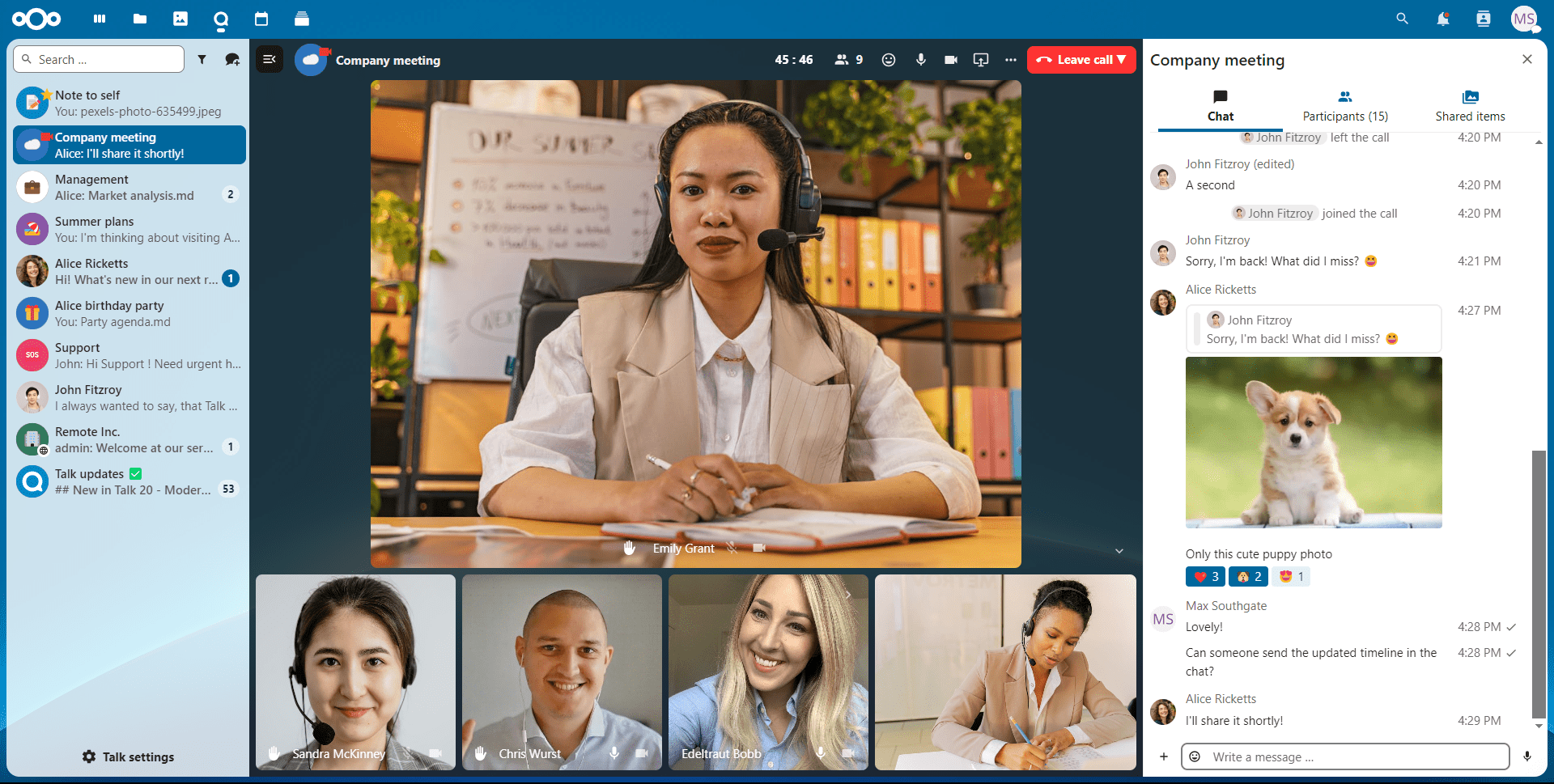
В раскрученном виде спикер отображается крупно, а другие люди располагаются в ряд ниже. Если люди не помещаются на экране, слева и справа появляются кнопки, позволяющие перемещаться.
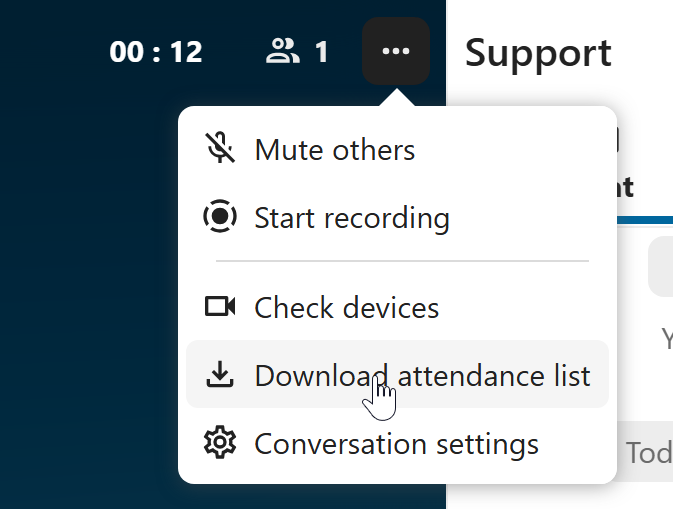
Download call participants list
You can download the list of participants in a call from the ... menu in the top bar. This will download a CSV file with the names and email addresses of all participants in the call.
The table in the CSV file contains the following columns:
Name: The name of the participant.
Email: The email address of the participant.
Type: Indicates whether the participant is a registered user or a guest.
Identifier: Unique identifier for the participant.