Nastavení vašich předvoleb
Jako uživatel můžete spravovat svá osobní nastavení.
Dostanete se do nich takto:
Click your profile picture to open the menu.

Click Settings in the dropdown menu to open your personal settings.

Poznámka
Pokud jste správce, můžete zde také spravovat uživatele a server jako takový. Tyto odkazy se nezobrazí uživateli, který není správcem.
To, které volby jsou uvedené na stránce Osobní nastavení závisí na tom, které všechny aplikace jsou zapnuté správcem. Mezi funkce, které zde můžete spatřit, spadá:
Využití úložiště a kvóta k dispozici
Správa vašeho profilového obrázku
Celé jméno (můžete si sem zadat cokoli chcete, protože je oddělené od přihlašovacího jména do Nextcloud, které se nemůže opakovat a hlavně ho není možné měnit)
E-mailová adresa
Seznam vašich členství ve skupinách
Změna vašeho hesla
Předvolby uživatele
Volba jazyka pro vaše používání rozhraní Nextcloud
Volba dne, kterým chcete aby týden začínal
Odkazy na aplikace pro desktop a mobilní platformy
Správa vašeho proudu aktivit a upozorňování
Výchozí složka do které ukládat nové dokumenty
Váš identifikátor v rámci federovaného sdílení
Odkazy pro sdílení na sociálních sítích
Verze Nextcloud
Poznámka
Available options and settings depend on your administrator’s configuration. If you are not able to change the password or the display name in your personal settings, please contact your administrator for help.
Sdílení vašich údajů v globálním adresáři kontaktů
Some administrators share their global address book with other Nextcloud instances (so-called Trusted Servers) or even with the wider world. This is helpful when two instances want to work closely together, or when people want to use Nextcloud as a virtual telephone book for others to browse. It also allows searching for contacts, creating shares, and much more.
You can change what personal data is shared by setting the scope of your data. Click the lock icon to open the following dropdown next to each entry:

Pokud nastavíte své údaje jako Soukromé, nikdo kromě vás je neuvidí.
If you set your data to Local, all logged-in users within your Nextcloud instance will be able to see the information, but no one outside of it.
If you set your data to Federated, the trusted server(s) added by your administrator will be able to see this data, in addition to all logged-in users.
If you set your data to Published, anyone can see your data. This is useful in some cases. Someone with a public-facing role such as marketing or sales might want to share their contact details with a wide variety of connections who might not be using Nextcloud.
Omezení toho, kdo může vidět údaje z vašeho profilu
If the profile is enabled by your administrator, your profile data can be read by other users and guests. To control who can see which information, adjust the scopes mentioned above:
Private will only allow you and users you have added to your phone book to see the data.
Local and above will also allow guests to see your data.
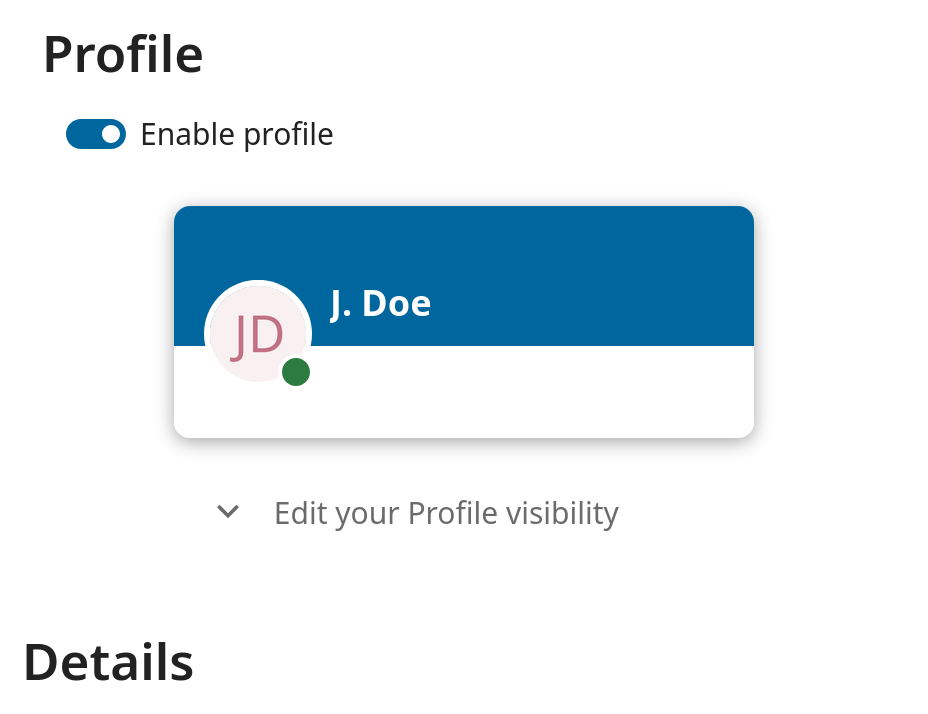
To restrict the visibility further, you can prevent guests from seeing your profile data by changing the profile visibility to logged-in users. In your personal settings, find the profile visibility button:
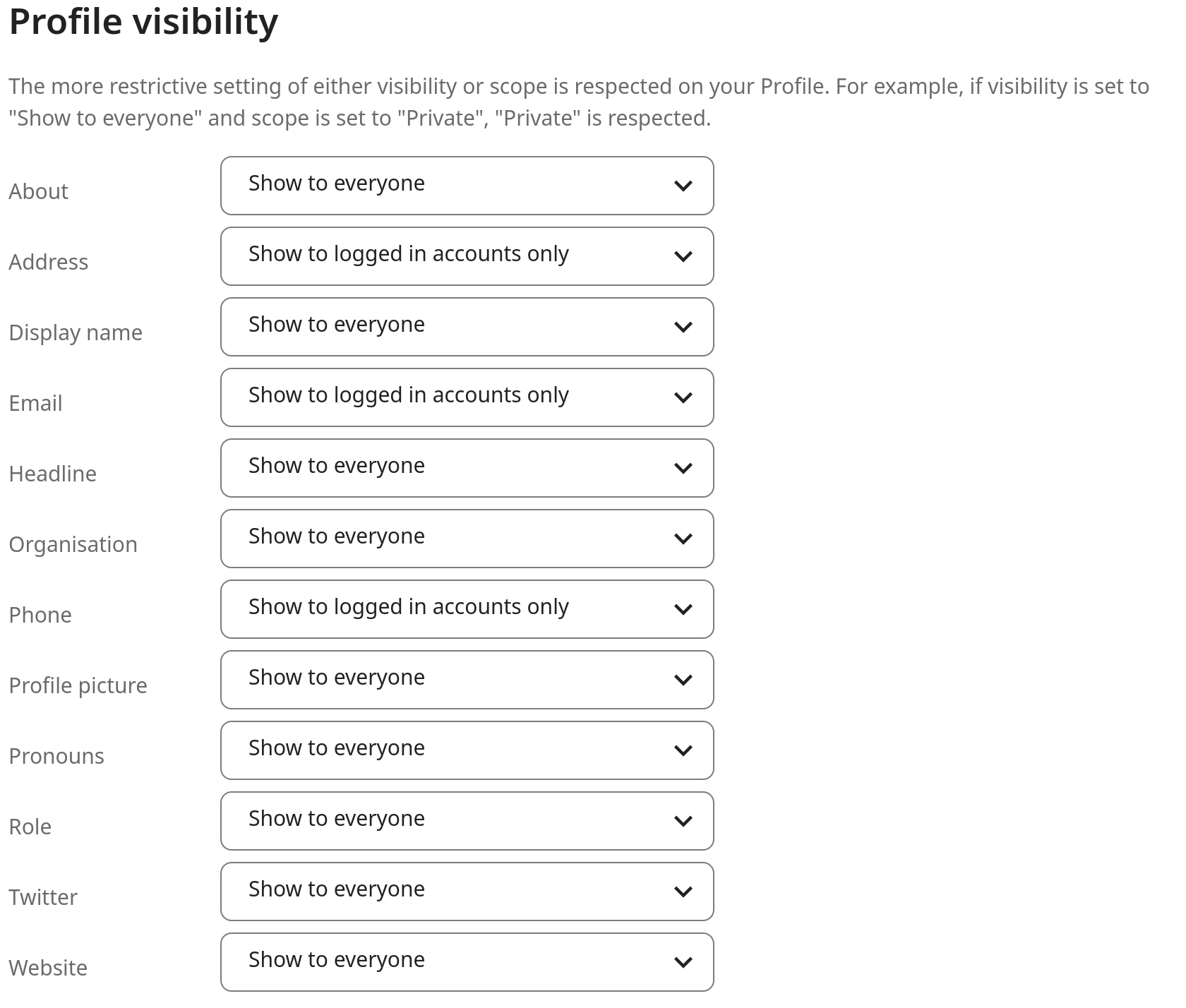
This allows you to configure the visibility for each profile attribute: