Ορισμός των προτιμήσεών σας
Ως χρήστης, μπορείτε να διαχειριστείτε τις προσωπικές σας ρυθμίσεις.
Για πρόσβαση στις προσωπικές σας ρυθμίσεις:
Click your profile picture to open the menu.

Click Settings in the dropdown menu to open your personal settings.

Σημείωση
Εάν είστε διαχειριστής, μπορείτε επίσης να διαχειρίζεστε χρήστες και να διαχειρίζεστε τον διακομιστή. Αυτοί οι σύνδεσμοι δεν εμφανίζονται σε έναν χρήστη που δεν είναι διαχειριστής.
Οι επιλογές που παρατίθενται στη σελίδα Προσωπικών Ρυθμίσεων εξαρτώνται από τις εφαρμογές που ενεργοποιούνται από τον διαχειριστή. Μερικές από τις δυνατότητες που θα δείτε περιλαμβάνουν τα εξής:
Χρήση και διαθέσιμο όριο
Διαχείριση της εικόνας προφίλ σας
Πλήρες όνομα (Μπορείτε να το ορίσετε όπως θέλετε, καθώς είναι ξεχωριστό από το όνομα σύνδεσης Nextcloud, το οποίο είναι μοναδικό και δεν μπορεί να αλλάξει)
Διεύθυνση email
Λίστα με τις συμμετοχές σας σε Ομάδες
Αλλαγή συνθηματικού
User preferences
Επιλογή γλώσσας για τη διεπαφή Nextcloud
Επιλογή της προτιμώμενης πρώτης ημέρας της εβδομάδας
Σύνδεσμοι για εφαρμογές υπολογιστή και κινητών
Διαχείριση της ροής δραστηριότητας και των ειδοποιήσεών σας
Προεπιλεγμένος φάκελος για αποθήκευση νέων εγγράφων
Το αναγνωριστικό Ομοσπονδιακής κοινοποίησής σας
Σύνδεσμοι κοινωνικής κοινοποίησης
Έκδοση Nextcloud
Σημείωση
Available options and settings depend on your administrator’s configuration. If you are not able to change the password or the display name in your personal settings, please contact your administrator for help.
Κοινοποίηση των δεδομένων σας στο παγκόσμιο βιβλίο διευθύνσεων
Some administrators share their global address book with other Nextcloud instances (so-called Trusted Servers) or even with the wider world. This is helpful when two instances want to work closely together, or when people want to use Nextcloud as a virtual telephone book for others to browse. It also allows searching for contacts, creating shares, and much more.
You can change what personal data is shared by setting the scope of your data. Click the lock icon to open the following dropdown next to each entry:

Εάν ορίσετε τα δεδομένα σας σε Ιδιωτικά, κανείς εκτός από εσάς δεν θα μπορεί να τα δει.
If you set your data to Local, all logged-in users within your Nextcloud instance will be able to see the information, but no one outside of it.
If you set your data to Federated, the trusted server(s) added by your administrator will be able to see this data, in addition to all logged-in users.
If you set your data to Published, anyone can see your data. This is useful in some cases. Someone with a public-facing role such as marketing or sales might want to share their contact details with a wide variety of connections who might not be using Nextcloud.
Περιορισμός του ποιος μπορεί να δει τα δεδομένα του προφίλ σας
If the profile is enabled by your administrator, your profile data can be read by other users and guests. To control who can see which information, adjust the scopes mentioned above:
Private will only allow you and users you have added to your phone book to see the data.
Local and above will also allow guests to see your data.
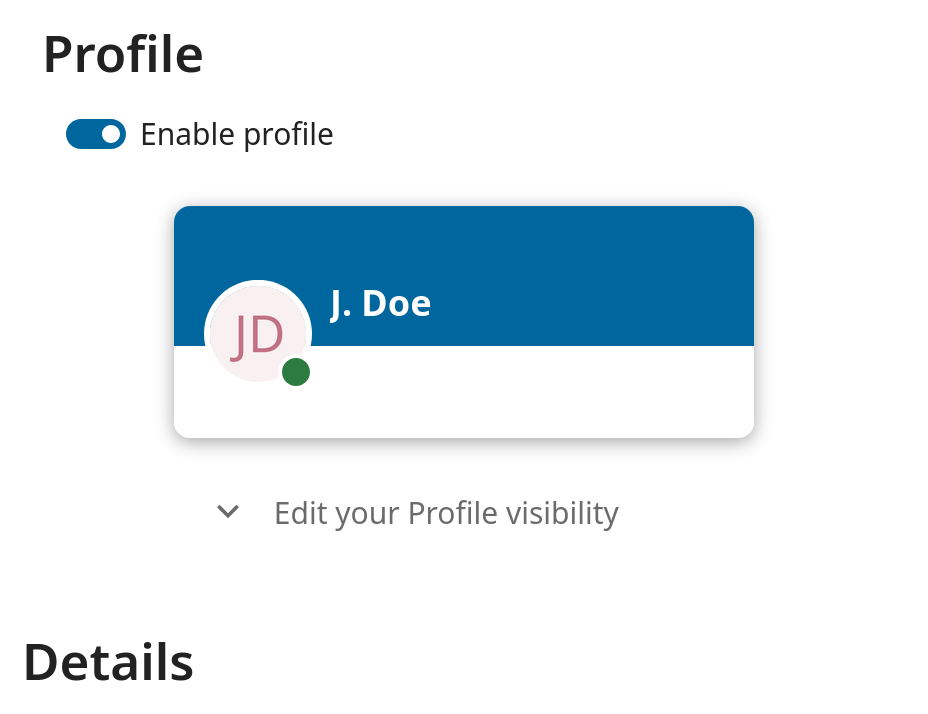
To restrict the visibility further, you can prevent guests from seeing your profile data by changing the profile visibility to logged-in users. In your personal settings, find the profile visibility button:
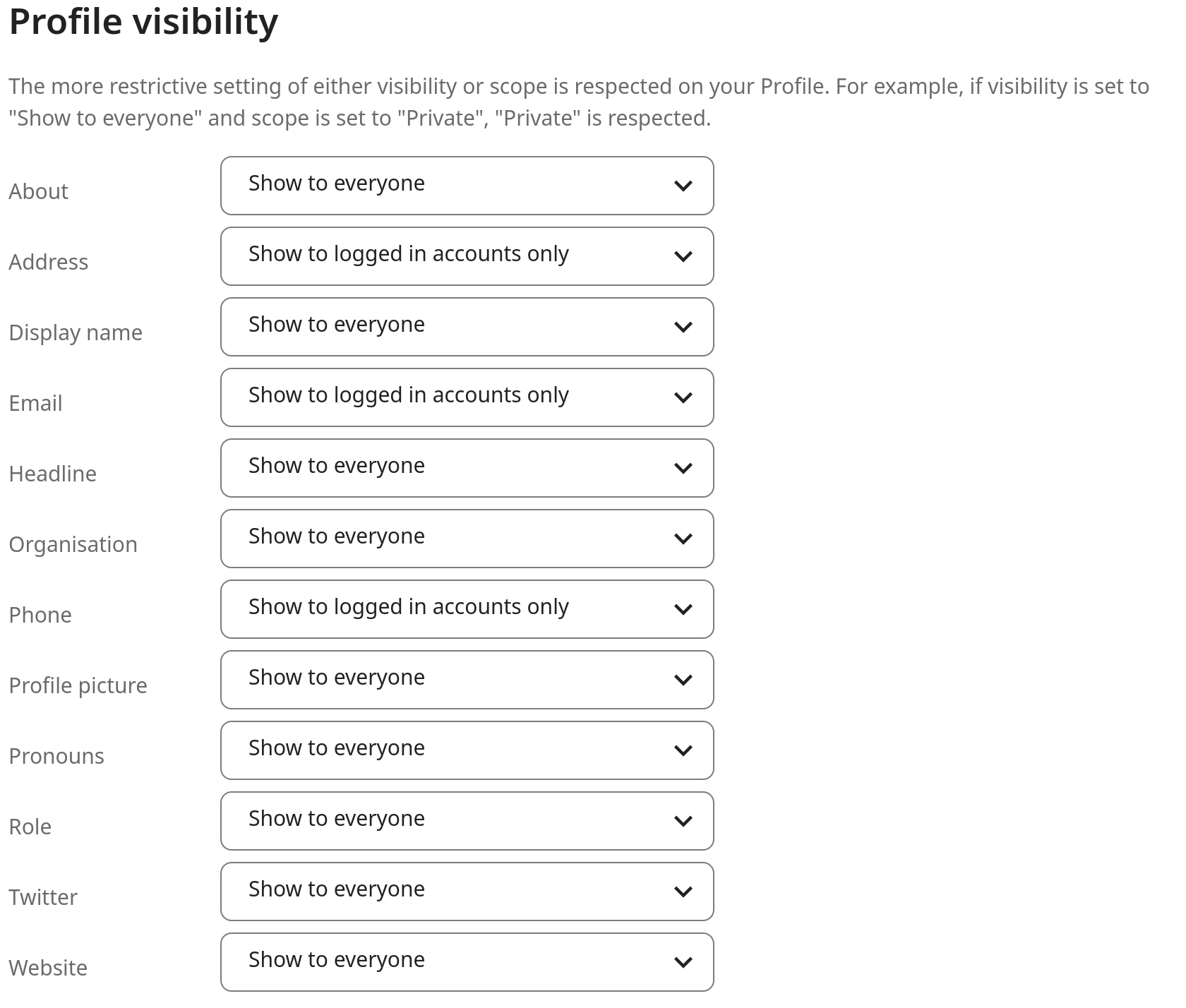
This allows you to configure the visibility for each profile attribute: