Gestionar sus preferencias
Como usuario, usted puede gestionar sus preferencias personales
Para acceder a sus preferencias o configuración personal:
Click your profile picture to open the menu.

Click Settings in the dropdown menu to open your personal settings.

Nota
Si usted es un administrador, también puede gestionar usuarios y el servidor. Estos enlaces no aparecen al resto de usuarios no administradores.
Las opciones que aparecen en la Página de Ajustes Personales dependen de las aplicaciones que hayan sido habilitadas por el administrador. Entre ellas se pueden encontrar las siguientes:
Cuota usada y disponible
Cambiar su foto de perfile
Nombre completo (puede cambiarse a cualquier valor, es independiente de su nombre de usuario de Nextcloud, que sí es único y no puede ser editado)
Dirección de correo electrónico
Lista de grupos a los que perteneces
Cambio de contraseña
User preferences
Cambiar el idioma en el que se muestra la interfaz de Nextcloud
Elija su primer día de la semana preferido
Enlaces a las aplicaciones de escritorio y móvil
Gestionar su actividad reciente y notificaciones
Carpeta por defecto en la que se guardan los documentos nuevos
Su identificador para compartir mediante federación
Enlaces para compartir en redes sociales
La versión de Nextcloud
Nota
Available options and settings depend on your administrator’s configuration. If you are not able to change the password or the display name in your personal settings, please contact your administrator for help.
Compartir sus datos en la libreta de direcciones global
Some administrators share their global address book with other Nextcloud instances (so-called Trusted Servers) or even with the wider world. This is helpful when two instances want to work closely together, or when people want to use Nextcloud as a virtual telephone book for others to browse. It also allows searching for contacts, creating shares, and much more.
You can change what personal data is shared by setting the scope of your data. Click the lock icon to open the following dropdown next to each entry:

Si establece sus datos como Privados, nadie salvo Ud. podrá verla.
If you set your data to Local, all logged-in users within your Nextcloud instance will be able to see the information, but no one outside of it.
If you set your data to Federated, the trusted server(s) added by your administrator will be able to see this data, in addition to all logged-in users.
If you set your data to Published, anyone can see your data. This is useful in some cases. Someone with a public-facing role such as marketing or sales might want to share their contact details with a wide variety of connections who might not be using Nextcloud.
Restrict who can see your profile data
If the profile is enabled by your administrator, your profile data can be read by other users and guests. To control who can see which information, adjust the scopes mentioned above:
Private will only allow you and users you have added to your phone book to see the data.
Local and above will also allow guests to see your data.
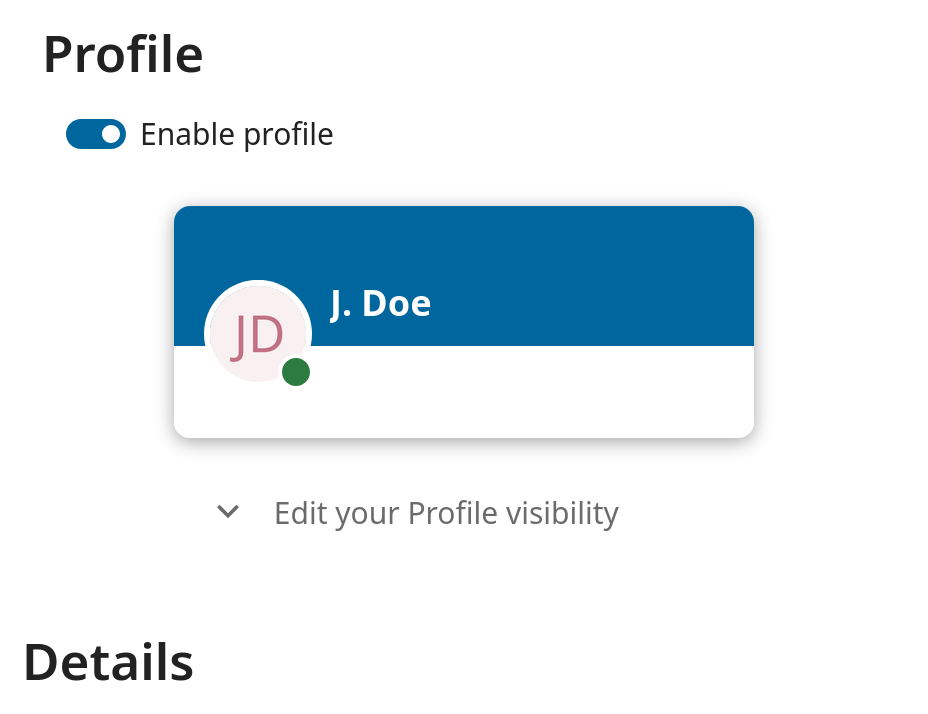
To restrict the visibility further, you can prevent guests from seeing your profile data by changing the profile visibility to logged-in users. In your personal settings, find the profile visibility button:
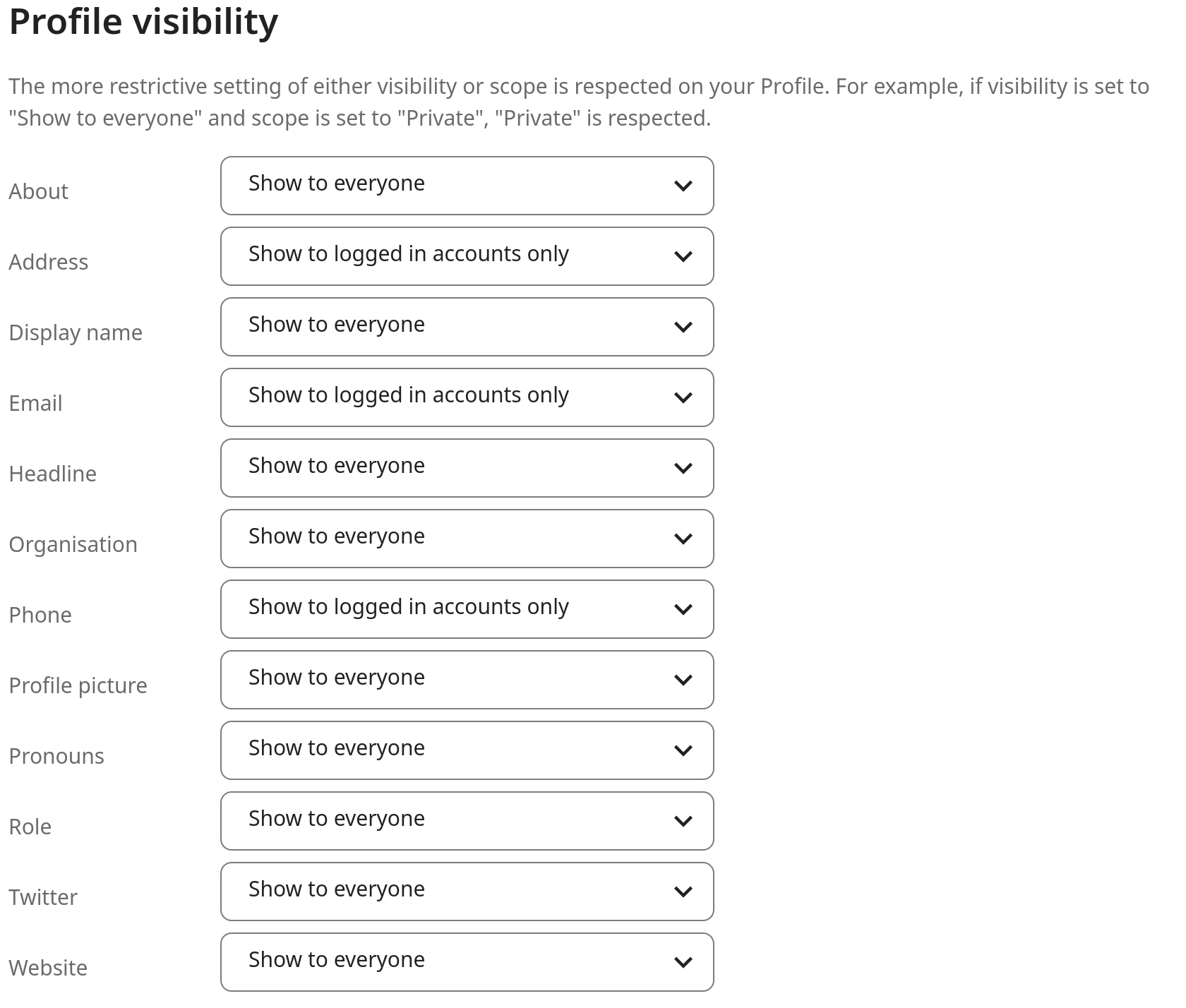
This allows you to configure the visibility for each profile attribute: