Impostare le proprie preferenze
Come utente, puoi gestire le tue impostazioni personali.
Per accedere alle tue impostazioni personali:
Click your profile picture to open the menu.

Click Settings in the dropdown menu to open your personal settings.

Nota
Se sei un amministratore, puoi anche gestire gli utenti ed amministrare il server. Questi link non compaiono agli utenti non-amministratori
Le opzioni elencate nella pagina Impostazioni personali dipende dalle applicazioni abilitate dall’amministratore. Alcune delle funzionalità che vedrai includono ciò che segue:
Utilizzo e quota disponibile
Gestisci la tua immagine di profilo
Nome completo (puoi impostarlo come preferisci, essendo separato dal tuo nome di accesso di Nextcloud, che è unico e non può essere cambiato)
Indirizzo email
Elenco dei gruppi a cui appartieni
Cambia la tua password
User preferences
Scegli la lingua per la tua interfaccia Nextcloud
Scegli il tuo primo giorno preferito della settimana
Collegamenti alle applicazioni desktop e mobili
Gestisci il tuo flusso delle attività e le notifiche
Cartella predefinita dove salvare i nuovi documenti
Il tuo ID di condivisione federata
Collegamento per la condivisione sule reti sociali
Versione di Nextcloud
Nota
Available options and settings depend on your administrator’s configuration. If you are not able to change the password or the display name in your personal settings, please contact your administrator for help.
Condivisione dei dati nella rubrica globale
Some administrators share their global address book with other Nextcloud instances (so-called Trusted Servers) or even with the wider world. This is helpful when two instances want to work closely together, or when people want to use Nextcloud as a virtual telephone book for others to browse. It also allows searching for contacts, creating shares, and much more.
You can change what personal data is shared by setting the scope of your data. Click the lock icon to open the following dropdown next to each entry:

Se imposti i tuoi dati su Privati, nessuno potrà vederli tranne te.
If you set your data to Local, all logged-in users within your Nextcloud instance will be able to see the information, but no one outside of it.
If you set your data to Federated, the trusted server(s) added by your administrator will be able to see this data, in addition to all logged-in users.
If you set your data to Published, anyone can see your data. This is useful in some cases. Someone with a public-facing role such as marketing or sales might want to share their contact details with a wide variety of connections who might not be using Nextcloud.
Limita chi può vedere i dati del tuo profilo
If the profile is enabled by your administrator, your profile data can be read by other users and guests. To control who can see which information, adjust the scopes mentioned above:
Private will only allow you and users you have added to your phone book to see the data.
Local and above will also allow guests to see your data.
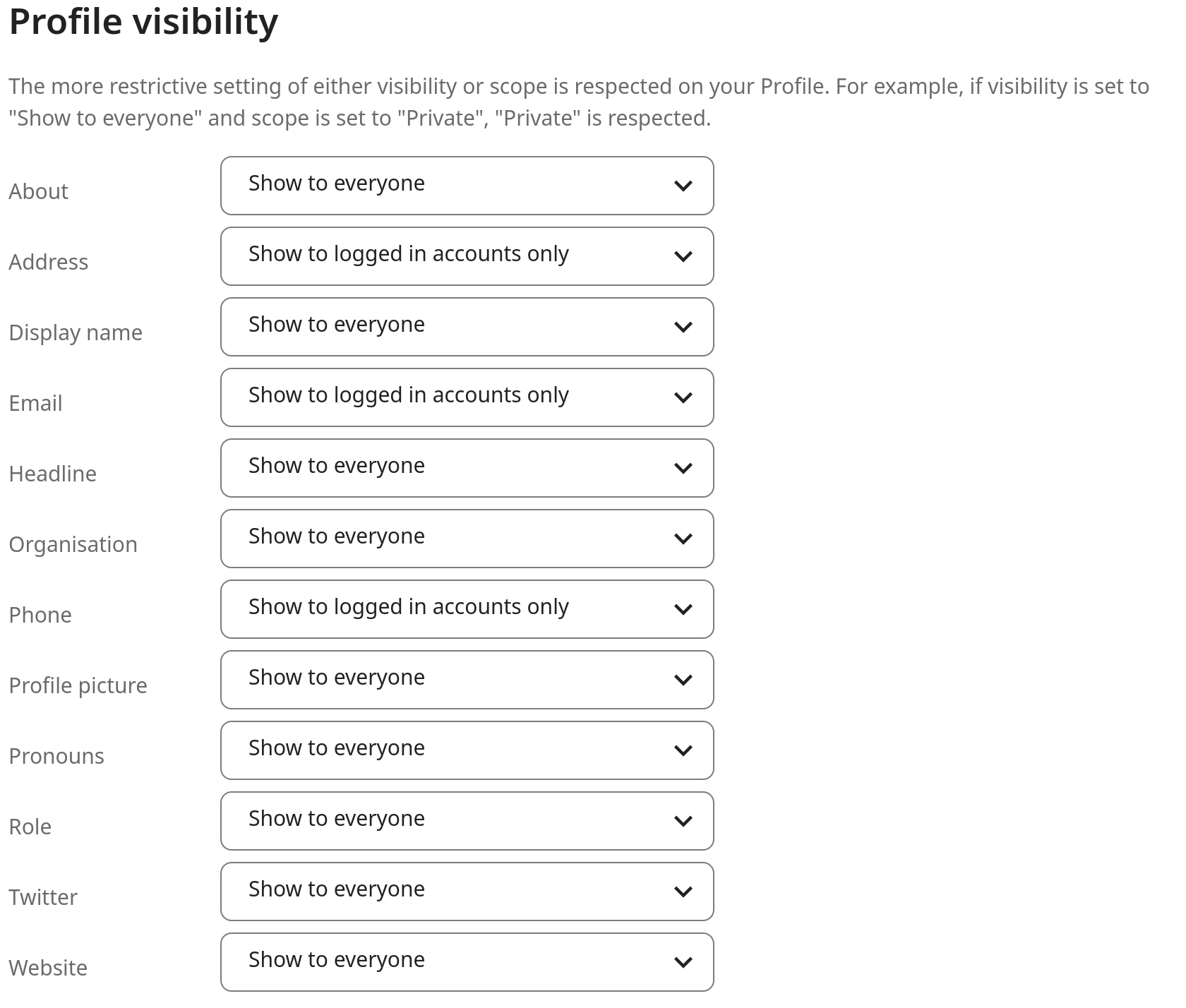
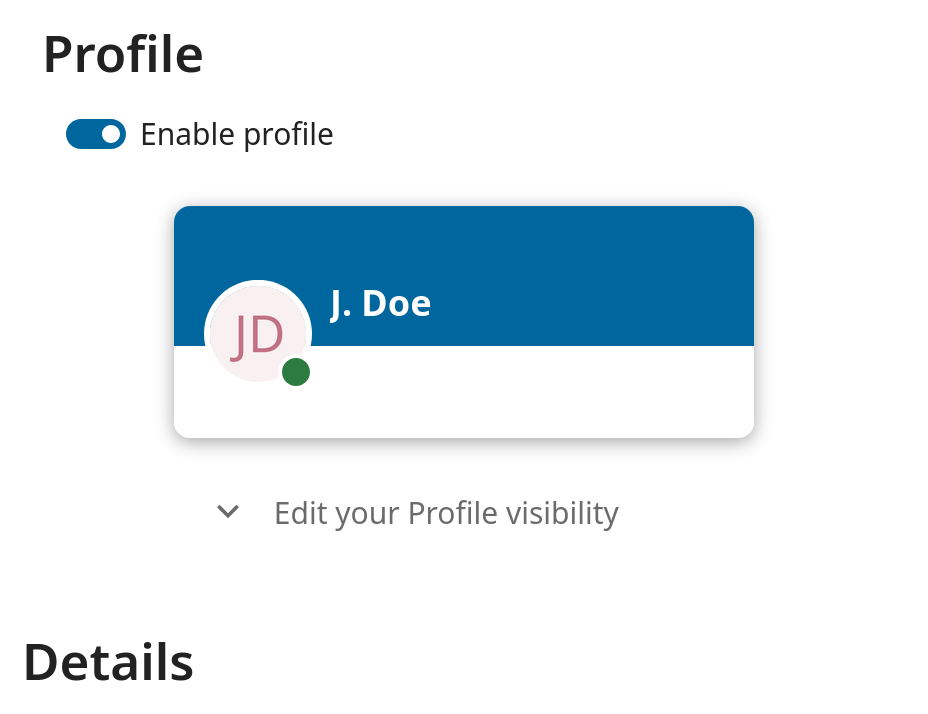
To restrict the visibility further, you can prevent guests from seeing your profile data by changing the profile visibility to logged-in users. In your personal settings, find the profile visibility button:
This allows you to configure the visibility for each profile attribute: