WebDAV を使用して Nextcloud のファイルにアクセスする
Nextcloud fully supports the WebDAV protocol, and you can connect to and synchronize with Nextcloud Files over WebDAV. This chapter explains how to connect Linux, macOS, Windows, and mobile devices to your Nextcloud server.
WebDAVは、分散著作およびバージョン管理を意味します。これは、リモートWebサーバーにホストされたファイルを簡単に作成、読み取り、編集できるようにするHTTP拡張機能です。WebDAVクライアントを使用すると、Linux、macOS、WindowsでNextcloudのファイル(共有を含む)にアクセスでき、リモートネットワーク共有と同じように扱い、同期を維持することができます。
Before you configure WebDAV, review the recommended way to connect client devices to Nextcloud.
公式のNextcloudデスクトップおよびモバイルクライアント
コンピュータをNextcloudサーバーと同期する推奨方法は、公式のNextcloud同期クライアント<https://nextcloud.com/install/#install-clients>`_を使用することです。 クライアントを設定して、ローカルディレクトリにファイルを保存することができ、Nextcloudサーバー上のどのディレクトリを同期するかを選択することができます。クライアントは現在の接続状態を表示し、すべてのアクティビティをログに記録するため、リモートファイルがPCにダウンロードされたかどうかを常に確認することができ、ローカルPCで作成および更新されたファイルがサーバーと正しく同期されているかどうかを検証することができます。
AndroidとApple iOSデバイスを同期する推奨方法は、公式のNextcloudモバイルアプリ<https://nextcloud.com/install/>`_を使用することです。
公式のNextcloudアプリをNextcloudサーバーに接続するには、ウェブブラウザからNextcloudにアクセスするために使用するURLと同じものを使用してください。例えば:
https://cloud.example.com
Nextcloud が 「nextcloud」 というサブディレクトリにインストールされている場合:
https://example.com/nextcloud
サードパーティのWebDAVクライアント
もし希望するなら、(オペレーティングシステムに組み込まれている可能性がある)WebDAVプロトコルをサポートするサードパーティークライアントを使用して、コンピューターをNextcloudサーバーに接続することもできます。
モバイルデバイスをNextcloudに接続するために、サードパーティーのWebDAV対応アプリを使用することもできます。
サードパーティのクライアントを使用する際には、Nextcloud に最適化されていない場合や、あなたのユースケースに重要だと考える機能を実装していない場合があることに注意してください。
Nextcloudコミュニティメンバーが使用しているモバイルクライアントには、以下が含まれます:
サードパーティのアプリを接続するために構成する際に使用するURLは、公式クライアント用のものよりも少し長くなります。
https://cloud.example.com/remote.php/dav/files/USERNAME/
Nextcloud が 「nextcloud」 というサブディレクトリにインストールされている場合:
https://example.com/nextcloud/remote.php/dav/files/USERNAME/
注釈
When using a third-party WebDAV client (including your operating system’s built-in client), you should use an application password for login rather than your regular password. In addition to improved security, this increases performance significantly. To configure an application password, log in to the Nextcloud Web interface, click your avatar, and choose Personal settings. Then choose Security in the left sidebar and scroll to the very bottom. There you can create an app password (which can also be revoked in the future without changing your main user password).
注釈
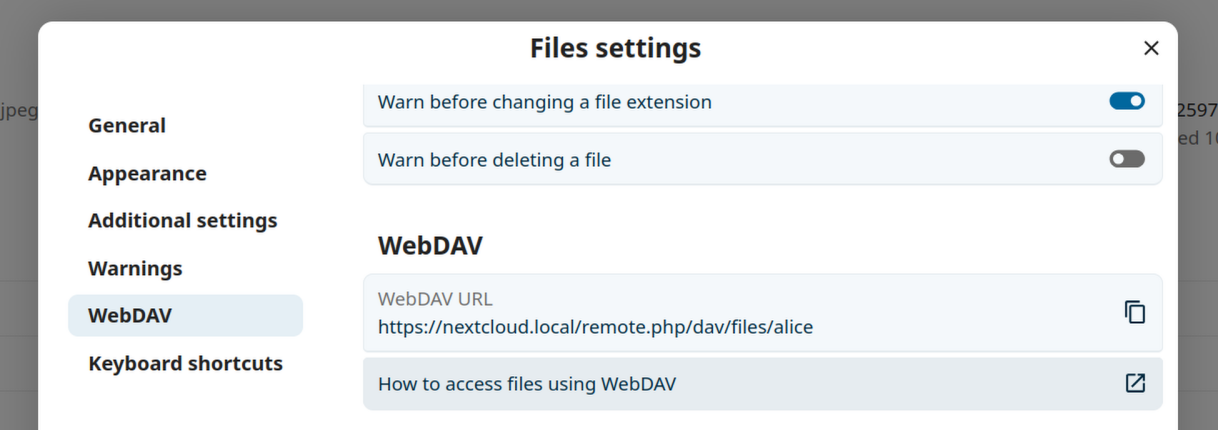
以下の例では、example.com/nextcloud をあなたのNextcloudサーバーのURLに置き換えてください(インストールがドメインのルートにある場合はディレクトリ部分を省略してください)、そしてUSERNAMEを接続するユーザーのユーザー名に置き換えてください。 あなたのNextcloudでWebDAV URL(設定の左下にあります)を確認してください。
You can find the WebDAV URL in Files settings under WebDAV in your Nextcloud account.
Linuxを使用してファイルにアクセスする
以下の方法を使って、Linuxオペレーティングシステム内のファイルにアクセスできます。
Nautilus ファイルマネージャー
When you configure your Nextcloud account in the GNOME Control Center, your files will automatically be mounted by Nautilus as a WebDAV share, unless you deselect file access.
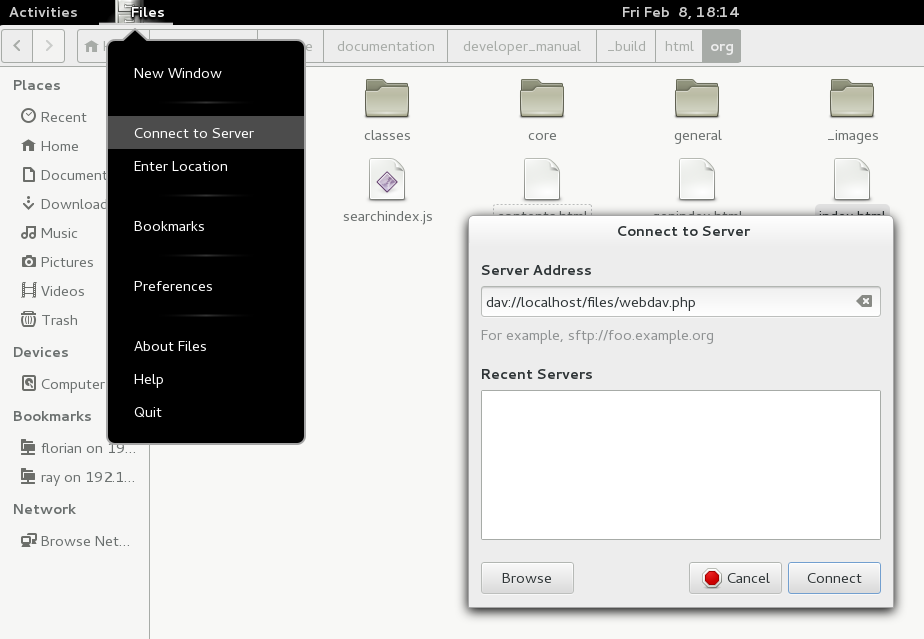
Nextcloud のファイルは手動でマウントすることもできます。Nautilus ファイルマネージャーを Nextcloud のシェアに接続するには、davs:// プロトコルを使用します。:
davs://example.com/nextcloud/remote.php/dav/files/USERNAME/
注釈
もしサーバー接続がHTTPSで保護されていない場合は、davs://の代わりにdav://を使用してください。
注釈
同じ方法は、MATE の Caja や Cinnamon の Nemo など、GVFS を使う他のファイルマネージャーでも有効です。
Accessing files with KDE and Dolphin
システム設定 -> ネットワーク -> オンラインアカウント に移動してください
「アカウントを追加…」をクリック
Nextcloud をクリック
サーバーアドレスを入力する
画面の指示に従ってログインする
ログイン後、「このアカウントを使用」のセクションで「ストレージ」を有効にする
サイドバーの「ネットワーク」から、Dolphin でファイルにアクセスできるようになりました
(Optional) To add this location as a shortcut in the sidebar, right-click 「Nextcloud Storage」, then click 「Add to Places」
(Optional) To customize the shortcut, right-click it in the sidebar, then click 「Edit…」 and customize the icon and label
Linux コマンドラインで WebDAV マウントを作成する
Linux のコマンドラインから WebDAV マウントを作成できます。これは、Nextcloud を他のリモートファイルシステムのマウントと同じ方法で扱いたい場合に便利です。次の例では、個人用のマウントを作成し、Linux コンピューターにログインするたびに自動的にマウントされるように設定する方法を示します。
WebDAV 共有を他のリモートファイルシステムと同様にマウントできる WebDAV ファイルシステムドライバー
davfs2をインストールします。Debian/Ubuntu では次のコマンドでインストールします:apt-get install davfs2
CentOS、Fedora、openSUSE では次のコマンドでインストールします:
yum install davfs2
自分を
davfs2グループに追加します:usermod -aG davfs2 <username>
注釈
If the davfs2 group doesn’t exist after installing the package, you may need to create it yourself and, possibly, adjust the davfs config file to use the group after you’ve created it.
次に、マウントポイント用としてホームディレクトリに
nextcloudディレクトリを作成し、個人設定ファイル用に.davfs2/を作成します:mkdir ~/nextcloud mkdir ~/.davfs2
/etc/davfs2/secretsを~/.davfs2にコピーします:cp /etc/davfs2/secrets ~/.davfs2/secrets
所有者を自分に設定し、権限を「所有者のみ読み書き可」にします:
chown <linux_username>:<linux_username> ~/.davfs2/secrets
chmod 600 ~/.davfs2/secrets
Nextcloud サーバーの URL と Nextcloud のユーザー名・パスワードを使用して、
secretsファイルの末尾にログイン情報を追加します:https://example.com/nextcloud/remote.php/dav/files/USERNAME/ <username> <password> or $PathToMountPoint $USERNAME $PASSWORD for example /home/user/nextcloud john 1234
マウント情報を
/etc/fstabに追加します:https://example.com/nextcloud/remote.php/dav/files/USERNAME/ /home/<linux_username>/nextcloud davfs user,rw,auto 0 0
次のコマンドを実行し、マウントと認証ができることをテストします。正しく設定できていれば root 権限は不要です:
mount ~/nextcloud
アンマウントもできるはずです:
umount ~/nextcloud
これで Linux システムにログインするたびに、Nextcloud 共有が WebDAV 経由で ~/nextcloud ディレクトリに自動的にマウントされるようになります。手動でマウントしたい場合は、/etc/fstab の auto を noauto に変更してください。
既知の問題
問題
リソースが一時的に利用できません
解決策
ディレクトリ内でファイルを作成する際に問題が発生する場合は、/etc/davfs2/davfs2.conf を編集して次を追加します:
use_locks 0
問題
証明書の警告
解決策
自己署名証明書を使用している場合は警告が表示されます。これを解消するには、davfs2 が証明書を認識できるように設定する必要があります。mycertificate.pem を /etc/davfs2/certs/ にコピーしてください。次に /etc/davfs2/davfs2.conf を編集し、servercert の行をコメントアウト解除します。続いて、次の例のように証明書のパスを追加します:
servercert /etc/davfs2/certs/mycertificate.pem
macOS を使用してファイルにアクセスする
macOS Finder からファイルにアクセスするには:
Finder 上部のメニューバーから 移動 > サーバへ接続… を選択します:

サーバへ接続… ウィンドウが開いたら、サーバアドレス: 欄に Nextcloud サーバーの WebDAV アドレスを入力します(例):
https://cloud.YOURDOMAIN.com/remote.php/dav/files/USERNAME/

接続 をクリックします。WebDAV サーバーが共有ディスクドライブとしてデスクトップに表示されます。
Microsoft Windowsを使用してファイルにアクセスする方法
Windows のネイティブな WebDAV 実装を使用する場合、Windows Explorer を使用して Nextcloud を新しいドライブにマップできます。ドライブにマップすることで、ネットワークドライブに保存されているファイルをブラウズする方法と同じ方法で、Nextcloud サーバーに保存されているファイルをブラウズできます。
この機能を使用するには、ネットワーク接続が必要です。オフラインでファイルを保存する場合は、デスクトップクライアントを使用して、Nextcloud上のすべてのファイルをローカルハードドライブの1つまたは複数のディレクトリに同期してください。
注釈
In Windows 10, Basic Authentication is allowed by default when HTTPS is enabled before mapping your drive.
古いバージョンのWindowsでは、WindowsレジストリでBasic認証の使用を許可する必要があります。
regeditを起動し、HKEY_LOCAL_MACHINE\SYSTEM\CurrentControlSet\Services\WebClient\Parametersに移動します。BasicAuthLevel``(Windows Vista/7/8)または ``UseBasicAuth``(Windows XP/Windows Server 2003)の ``DWORD値を作成または編集し、SSL 接続の場合は値データを1に設定します。値0は基本認証が無効であることを意味し、値2は SSL と非 SSL の両方の接続を許可します(推奨しません)。次にレジストリエディターを終了し、コンピューターを再起動します。
コマンドラインでドライブをマッピングする
次の例では、コマンドラインを使用してドライブをマッピングする方法を示します。ドライブをマッピングするには:
Windows でコマンドプロンプトを開きます。
コマンドプロンプトで次の行を入力し、コンピューターの Z ドライブにマップします:
net use Z: https://<drive_path>/remote.php/dav/files/USERNAME/ /user:youruser yourpassword
<drive_path> は Nextcloud サーバーの URL です。例えば:
net use Z: https://example.com/nextcloud/remote.php/dav/files/USERNAME/ /user:youruser yourpassword
コンピューターは Nextcloud アカウントのファイルをドライブレター Z にマッピングします。
エラー
System error 67 has occurred. The network name cannot be found. というエラーが表示される、または頻繁に切断される場合は、サービス アプリを開き、WebClient サービスが実行中であり、起動時に自動的に開始される設定になっていることを確認してください。
注釈
推奨はしませんが、接続を暗号化しない HTTP を使用して Nextcloud サーバーをマウントすることもできます。
公共の場所でデバイスから HTTP 接続を使用する予定がある場合は、必要なセキュリティを確保するために VPN トンネルの使用を強く推奨します。
別のコマンド構文は次のとおりです:
net use Z: \\example.com@ssl\nextcloud\remote.php\dav /user:youruser
yourpassword
Windows Explorer でドライブをマッピングする
Microsoft Windows Explorer を使用してドライブをマッピングするには:
MS Windows コンピューターで Windows Explorer を開きます。
コンピューター を右クリックし、ドロップダウンメニューから ネットワーク ドライブの割り当て… を選択します。
Nextcloud を割り当てたいローカルのネットワークドライブを選択します。
Nextcloud インスタンスのアドレスに続けて、/remote.php/dav/files/USERNAME/ を指定します。
例:
https://example.com/nextcloud/remote.php/dav/files/USERNAME/
注釈
SSL で保護されたサーバーの場合は、再起動後もマッピングを維持するために サインイン時に再接続する にチェックを入れてください。別のユーザーとして Nextcloud サーバーに接続したい場合は、別の資格情報を使用して接続する にチェックを入れます。
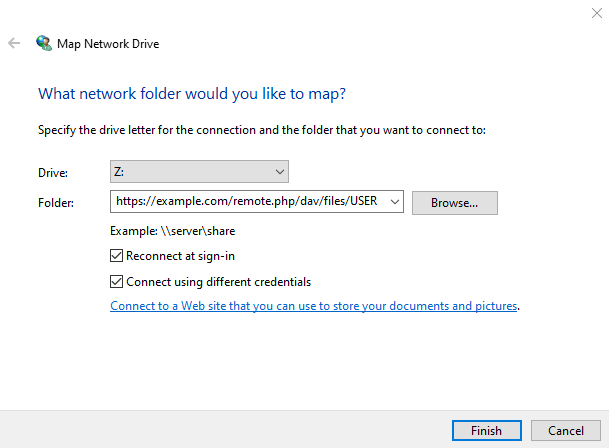
Finishボタンをクリックします。
Windows Explorer がネットワークドライブをマッピングし、Nextcloud インスタンスを利用できるようにします。
Cyberduck を使用してファイルにアクセスする
Cyberduck は、macOS と Windows でのファイル転送向けに設計された、オープンソースの FTP / SFTP / WebDAV / OpenStack Swift / Amazon S3 ブラウザーです。
注釈
この例では Cyberduck バージョン 4.2.1 を使用します。
Cyberduck を使用するには:
先頭にプロトコル情報を付けずにサーバーを指定します。
例:
example.com適切なポートを指定します。
選択するポートは、Nextcloud サーバーが SSL をサポートしているかどうかによって異なります。SSL を使用する場合、Cyberduck では別の接続種別を選択する必要があります。
- 例:
暗号化なし WebDAV の場合は
80安全な WebDAV(HTTPS/SSL)の場合は
443
「More Options」ドロップダウンメニューを使用して、WebDAV URL の残りの部分を「Path」欄に追加します。
例:
remote.php/dav/files/USERNAME/
これで Cyberduck から Nextcloud サーバー上のファイルにアクセスできるようになります。
既知の問題
問題
WebDAV access is very slow or times out.
解決策
When using a third-party WebDAV client (including your operating system’s built-in client), you should authenticate with an application password rather than your regular account password. Using a regular password carries a significant performance penalty because Nextcloud must perform additional work to verify it on every request. Using an application password removes this overhead and can improve transfer speeds substantially.
To create an application password, log in to the Nextcloud web interface, click your avatar, choose Personal settings, then open the Security section in the left sidebar and scroll to the bottom. Create an app password there and use it in your WebDAV client instead of your main password.
問題
Windows が HTTPS を使用して接続できません。
解決策 1
Windows の WebDAV クライアントは、暗号化接続で Server Name Indication(SNI)をサポートしていない可能性があります。SSL で暗号化された Nextcloud インスタンスをマウントする際にエラーが発生する場合は、SSL ベースのサーバーに専用 IP アドレスを割り当てられるか、プロバイダーに問い合わせてください。
解決策 2
Windows の WebDAV クライアントは TLSv1.1 および TLSv1.2 接続をサポートしていない可能性があります。サーバー設定を TLSv1.1 以上のみ提供するように制限している場合、サーバーへの接続に失敗することがあります。詳細は WinHTTP のドキュメントを参照してください。
問題
次のエラーメッセージが表示されます: Error 0x800700DF: The file size exceeds the limit allowed and cannot be saved.
解決策
Windows は、WebDAV 共有から/へ転送できるファイルの最大サイズを制限しています。HKEY_LOCAL_MACHINE\\SYSTEM\\CurrentControlSet\\Services\\WebClient\\Parameters の FileSizeLimitInBytes を Modify で編集して、値を増やすことができます。
上限を最大の 4GB に増やすには、Decimal を選択し、4294967295 を入力してから Windows を再起動するか、WebClient サービスを再起動します。
問題
Adding a WebDAV drive on Windows with the steps above does not display the correct available Nextcloud space and instead shows the size and free space of the C: drive.
回答
Unfortunately, this is a limitation of WebDAV itself, because it does not provide a way for the client to retrieve available free space from the server. Windows automatically falls back to the size and free space of the C: drive. There is no direct solution for this limitation.
問題
Microsoft Office から WebDAV 経由でファイルにアクセスできません。
解決策
既知の問題とその解決策は、KB2123563 の記事に記載されています。
問題
自己署名証明書を使用している場合、Windows で Nextcloud を WebDAV ドライブとしてマッピングできません。
解決策
Access your Nextcloud instance in your preferred Web browser.
ブラウザーのステータスラインに証明書エラーが表示されるところまでクリックして進めます。
証明書を表示し、Details タブで「Copy to File」を選択します。
ファイルを任意の名前(例:
myNextcloud.pem)でデスクトップに保存します。スタートメニュー > 「ファイル名を指定して実行」を開き、MMC と入力して「OK」をクリックし、Microsoft Management Console を開きます。
File > Add/Remove Snap-In を開きます。
Certificates を選択し、「Add」をクリックして「My User Account」を選び、「Finish」、最後に「OK」をクリックします。
Trusted Root Certification Authorities > Certificates までたどります。
Certificates を右クリックし、All Tasks > Import を選択します。
デスクトップに保存した証明書を選択します。
「Place all Certificates in the following Store」を選択し、「Browse」をクリックします。
「Show Physical Stores」にチェックを入れ、Trusted Root Certification Authorities を展開して Local Computer を選択し、「OK」をクリックしてインポートを完了します。
一覧を確認して証明書が表示されていることを確認します。表示されない場合は Refresh が必要かもしれません。
MMC を終了します。
Firefox ユーザーの場合:
ブラウザーを起動し、Application menu > History > Clear recent history… に移動します。
「Time range to clear」ドロップダウンで「Everything」を選択します
「Active Logins」チェックボックスを選択します
「Clear now」ボタンをクリックします
ブラウザーを閉じてから再度開き、テストします。
Chrome 系ブラウザー(Chrome、Chromium、Microsoft Edge)ユーザーの場合:
Windows のコントロールパネルを開き、Internet Options を開きます
Content タブで「Clear SSL State」ボタンをクリックします。
ブラウザーを閉じてから再度開き、テストします。
cURL を使用してファイルにアクセスする
WebDAV は HTTP の拡張であるため、cURL を使用してファイル操作をスクリプト化できます。
注釈
Settings → Administration → Sharing → Allow users on this server to send shares to other servers。このオプションが無効の場合、cURL には --header "X-Requested-With: XMLHttpRequest" オプションを付けて実行する必要があります。
現在の日付を名前にしたフォルダーを作成するには:
$ curl -u user:pass -X MKCOL "https://example.com/nextcloud/remote.php/dav/files/USERNAME/$(date '+%d-%b-%Y')"
そのディレクトリに error.log ファイルをアップロードするには:
$ curl -u user:pass -T error.log "https://example.com/nextcloud/remote.php/dav/files/USERNAME/$(date '+%d-%b-%Y')/error.log"
ファイルを移動するには:
$ curl -u user:pass -X MOVE --header 'Destination: https://example.com/nextcloud/remote.php/dav/files/USERNAME/target.jpg' https://example.com/nextcloud/remote.php/dav/files/USERNAME/source.jpg
ルートフォルダー内のファイルのプロパティを取得するには:
$ curl -X PROPFIND -H "Depth: 1" -u user:pass https://example.com/nextcloud/remote.php/dav/files/USERNAME/ | xml_pp
<?xml version="1.0" encoding="utf-8"?>
<d:multistatus xmlns:d="DAV:" xmlns:oc="http://nextcloud.org/ns" xmlns:s="http://sabredav.org/ns">
  <d:response>
    <d:href>/nextcloud/remote.php/dav/files/USERNAME/</d:href>
    <d:propstat>
      <d:prop>
        <d:getlastmodified>Tue, 13 Oct 2015 17:07:45 GMT</d:getlastmodified>
        <d:resourcetype>
          <d:collection/>
        </d:resourcetype>
        <d:quota-used-bytes>163</d:quota-used-bytes>
        <d:quota-available-bytes>11802275840</d:quota-available-bytes>
        <d:getetag>"561d3a6139d05"</d:getetag>
      </d:prop>
      <d:status>HTTP/1.1 200 OK</d:status>
    </d:propstat>
  </d:response>
  <d:response>
    <d:href>/nextcloud/remote.php/dav/files/USERNAME/welcome.txt</d:href>
    <d:propstat>
      <d:prop>
        <d:getlastmodified>Tue, 13 Oct 2015 17:07:35 GMT</d:getlastmodified>
        <d:getcontentlength>163</d:getcontentlength>
        <d:resourcetype/>
        <d:getetag>"47465fae667b2d0fee154f5e17d1f0f1"</d:getetag>
        <d:getcontenttype>text/plain</d:getcontenttype>
      </d:prop>
      <d:status>HTTP/1.1 200 OK</d:status>
    </d:propstat>
  </d:response>
</d:multistatus>
WinSCP を使用してファイルにアクセスする
WinSCP is a free, open-source SFTP, FTP, WebDAV, S3, and SCP client for Windows. Its main function is file transfer between a local and a remote computer. WinSCP also offers scripting and basic file management functionality.
WinSCP のポータブル版を ダウンロード し、Wine を通して Linux 上で実行することもできます。
To run WinSCP on Linux, install Wine through your distribution’s package manager,
then run: wine WinSCP.exe.
Nextcloud に接続するには:
WinSCP を起動します
メニューから「Session」を選択します
「New Session」メニュー項目を選択します
「File protocol」ドロップダウンを WebDAV に設定します
「Encryption」ドロップダウンを「TLS/SSL Implicit encryption」に設定します
hostname 欄に入力します:
example.comusername 欄に入力します:
NEXTCLOUDUSERNAMEpassword 欄に入力します:
NEXTCLOUDPASSWORD「Advanced…」ボタンを押します
左側で「Environment」→「Directories」に移動します
「Remote directory」欄に次を入力します:
/nextcloud/remote.php/dav/files/NEXTCLOUDUSERNAME/「OK」ボタンを押します
「Save」ボタンを押します
必要なオプションを選択し、「OK」ボタンを押します
「Login」ボタンを押して Nextcloud に接続します
注釈
If you use TOTP, use an app password. At the time of writing (2022-11-07), WinSCP does not support TOTP with Nextcloud.