Installatie
Download
You can download the latest version of the Nextcloud Desktop Synchronization Client from the Nextcloud download page. Clients are available for Linux, macOS, and Microsoft Windows.
Er zijn ook links naar broncode-archieven en oudere versies op de download-pagina.
Supported server versions
Each desktop client release supports the latest three stable Nextcloud server major versions at the time of release. See the Nextcloud Server release schedule for supported major versions.
Serververeisten
Windows 10+ (alleen 64 bit)
macOS 12.0+ (alleen 64 bit)
Linux (Ubuntu 24.04 of openSUSE 15.5 of Alma 8 of …) (alleen 64-bits)
For Linux distributions, we support, if technically feasible, the current LTS releases. For BSD, we support them if technically feasible, but we do not test them.
Notitie
We ondersteunen geen Citrix
We doen ons best om Citrixgebruikers te adviseren vanuit het zicht van het bureaublad.
We zullen problemen herstellen die ook reproduceerbaar zijn op de standaard ondersteunde systemen.
Al het andere valt buiten ons toepassingsgebied.
Install on macOS and Windows
Installation on macOS and Windows is the same as for any other software application: download the program and then double-click it to launch the installation, and then follow the installation wizard. After it is installed and configured the desktop client will automatically keep itself updated; see De Automatische Updater for more information.
For administrator-focused deployment options such as advanced Windows MSI configuration, non-interactive account provisioning, and command-line wizard preconfiguration, see the Admin Manual chapter on desktop client deployment and setup.
Install on Linux
For Linux, Nextcloud officially provides the desktop client as an AppImage on the Nextcloud download page.
Some Linux distributions also provide the Nextcloud desktop client through their package managers. These packages are maintained by the distribution or community, not by Nextcloud. If you prefer a package-managed installation, refer to your distribution’s documentation.
Linux users must also have a password manager enabled, such as GNOME Keyring or KWallet, so that the desktop client can log in automatically.
Initial Setup
After installation, the initial setup wizard is triggered. In the setup wizard, you can log in to your server, create an account with a provider, and configure which folders to sync. The wizard will guide you step-by-step through the essential configuration options and basic account setup.
First, you need to enter the URL of your Nextcloud server.
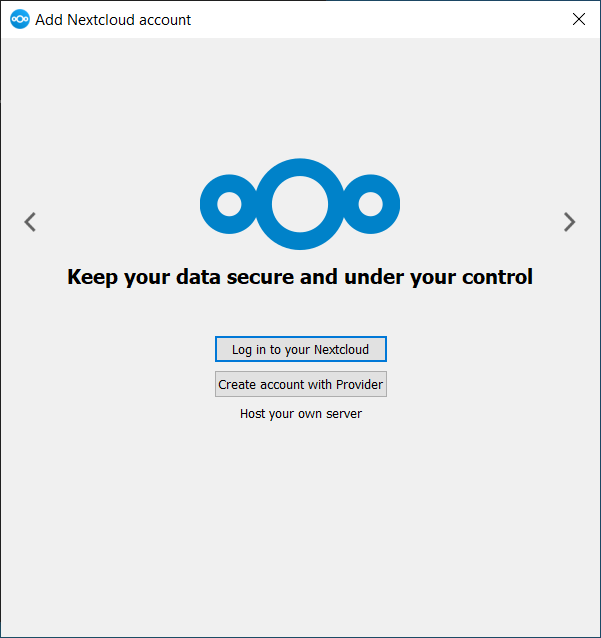
If you already have an account on a Nextcloud instance, click Login to your
Nextcloud. If you do not yet have a Nextcloud instance or an account, you may
need to create one first. Alternatively, you might want to register an account
with a provider. Press Create account with Provider in that case.
Notitie
The desktop client build you are using may have been built without provider support. In that case, you won’t see this page and will immediately see the next page.
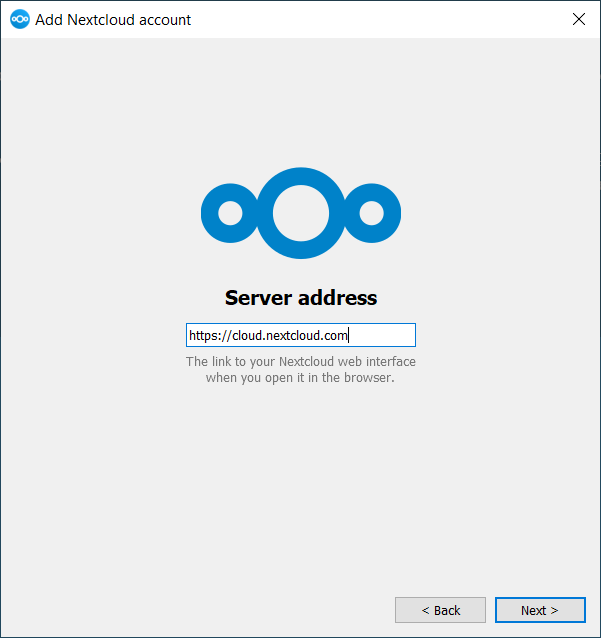
Voer de URL voor de Nextcloud instantie in. De URL is dezelfde als die in een browser wordt ingevoerd om de Nexctloud instantie te benaderen.
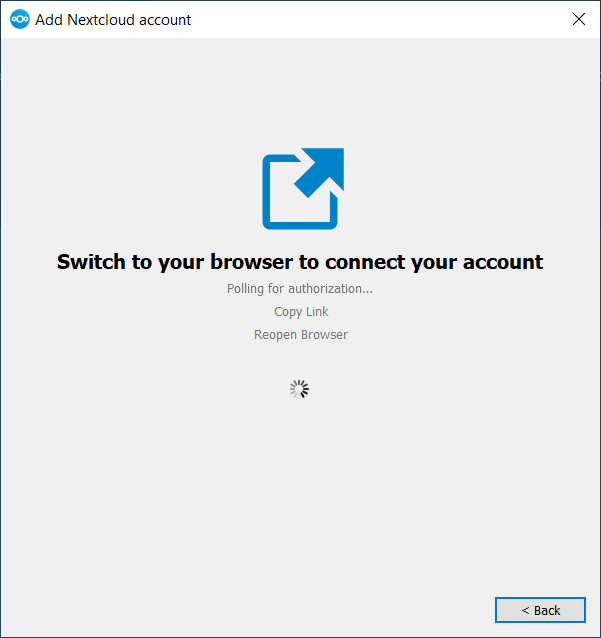
Now your web browser should open and prompt you to log in to your Nextcloud instance. Enter your username and password in your web browser and click Grant access when prompted. After you do that, go back to the wizard.
Notitie
You might not need to enter your username and password if you are already logged in to your web browser.
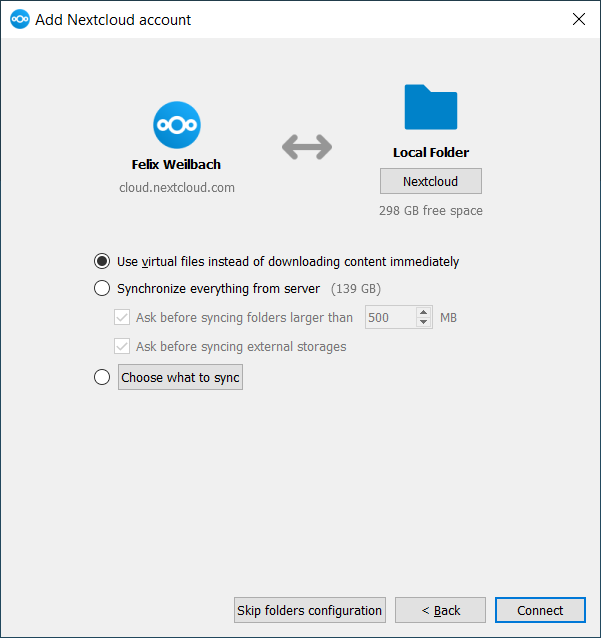
Op het scherm met locale folder-opties kan gekozen worden om alle bestanden op de Nextcloud-server te syncrhoniseren of een selectie van mappen. De locale standaardmap is ‘Nextcloud’ in de home-map. Dit kan ook gewijzigd worden.
When you have completed selecting your sync folders, click the Connect button. The client will attempt to connect to your Nextcloud server. If it is successful, the wizard will close itself. You can then observe the sync activity and open the main dialog by clicking on the tray icon.