Configuração de suas preferências
Como usuário, você pode gerenciar suas configurações pessoais.
Para acessar suas configurações pessoais:
Click your profile picture to open the menu.

Click Settings in the dropdown menu to open your personal settings.

Nota
Se você for um administrador, também pode gerenciar usuários e administrar o servidor. Estes links não são exibidos para um usuário que não seja administrador.
As opções listadas na página de configurações pessoais dependem dos aplicativos ativados pelo administrador. Alguns dos recursos que você verá incluem o seguinte:
Uso e cota disponível
Gerenciar sua foto do perfil
Nome completo (você pode fazer o que quiser, pois é separado do seu nome de login do Nextcloud, que é único e não pode ser alterado)
Endereço de e-mail
Lista de suas associações a grupos
Alterar sua senha
Preferências do usuário
Escolher o idioma para sua interface Nextcloud
Escolher o primeiro dia da semana de sua preferência
Links para aplicativos de desktop e móveis
Gerenciar seu fluxo de Atividades e notificações
Pasta padrão para salvar novos documentos
Seu ID de compartilhamento Federado
Links de compartilhamento social
Versão do Nextcloud
Nota
Available options and settings depend on your administrator’s configuration. If you are not able to change the password or the display name in your personal settings, please contact your administrator for help.
Compartilhar seus dados no catálogo de endereços global
Some administrators share their global address book with other Nextcloud instances (so-called Trusted Servers) or even with the wider world. This is helpful when two instances want to work closely together, or when people want to use Nextcloud as a virtual telephone book for others to browse. It also allows searching for contacts, creating shares, and much more.
You can change what personal data is shared by setting the scope of your data. Click the lock icon to open the following dropdown next to each entry:

Se você definir seus dados como Privado, ninguém além de você poderá vê-los.
If you set your data to Local, all logged-in users within your Nextcloud instance will be able to see the information, but no one outside of it.
If you set your data to Federated, the trusted server(s) added by your administrator will be able to see this data, in addition to all logged-in users.
If you set your data to Published, anyone can see your data. This is useful in some cases. Someone with a public-facing role such as marketing or sales might want to share their contact details with a wide variety of connections who might not be using Nextcloud.
Restringir quem pode ver os dados de seu perfil
If the profile is enabled by your administrator, your profile data can be read by other users and guests. To control who can see which information, adjust the scopes mentioned above:
Private will only allow you and users you have added to your phone book to see the data.
Local and above will also allow guests to see your data.
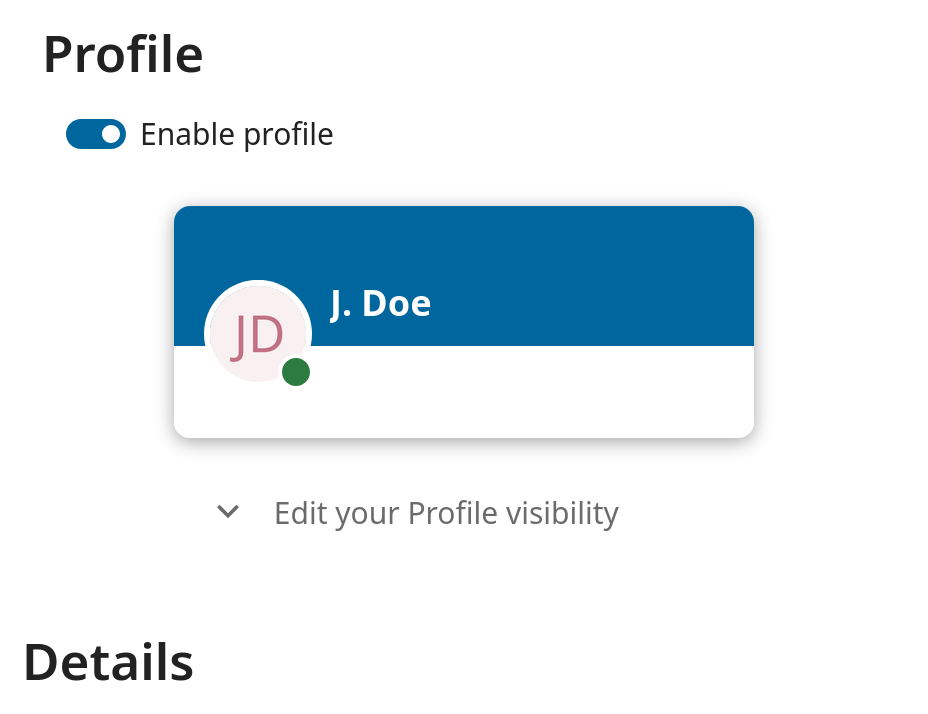
To restrict the visibility further, you can prevent guests from seeing your profile data by changing the profile visibility to logged-in users. In your personal settings, find the profile visibility button:
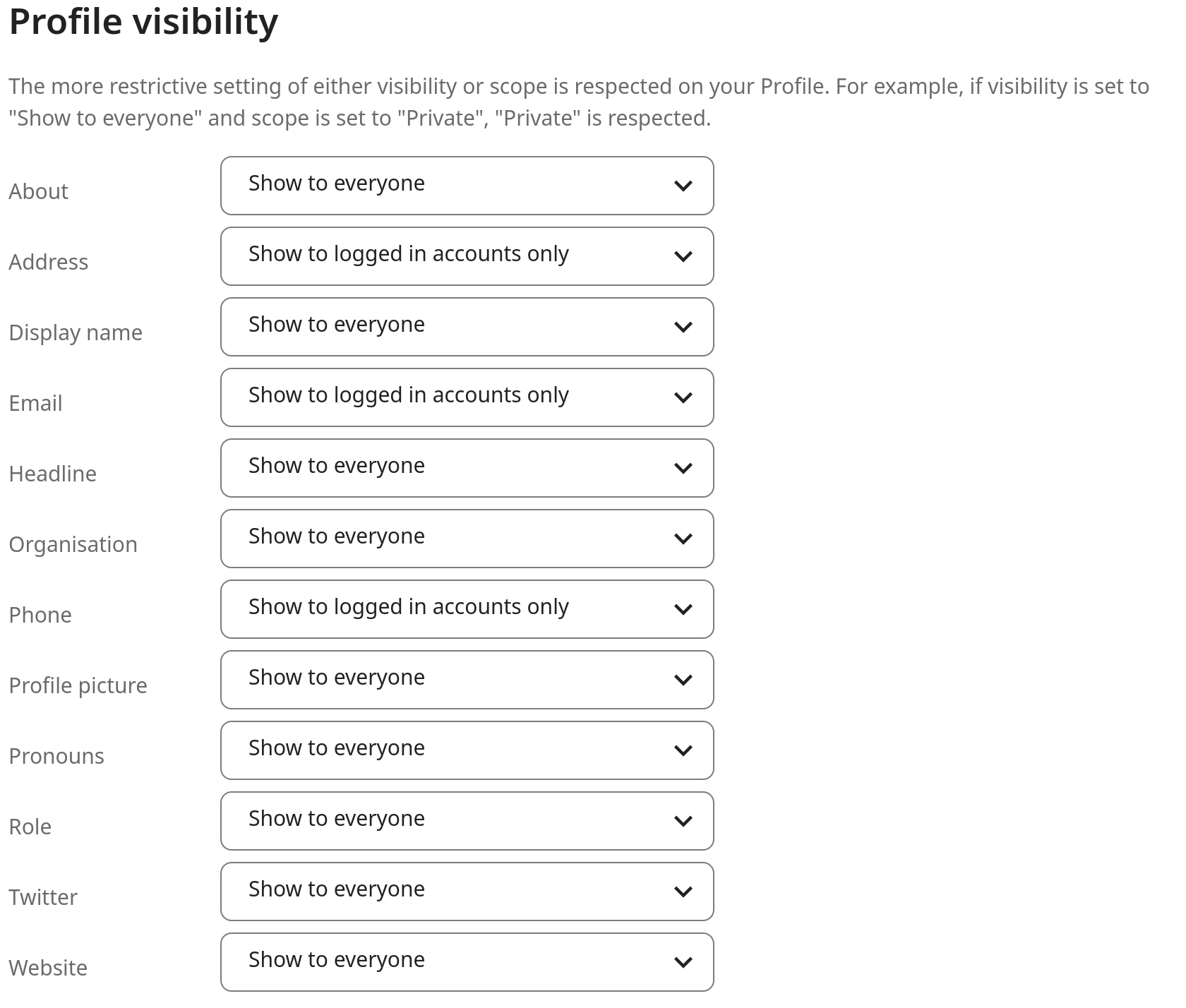
This allows you to configure the visibility for each profile attribute: