Kullanıcı ayarları
Bir kullanıcı olarak kişisel ayarlarınızı yapabilirsiniz.
Kişisel ayarlarınıza erişmek için:
Click your profile picture to open the menu.

Click Settings in the dropdown menu to open your personal settings.

Not
Yöneticiyseniz, kullanıcıları ve sunucuyu da yönetebilirsiniz. Bu bağlantılar, yönetici olmayan kullanıcılara görüntülenmez.
Kişisel ayarlar sayfasındaki seçenekler, yönetici tarafından kullanıma alınan uygulamalara göre değişebilir. Göreceğiniz seçeneklerin bazıları şunlardır:
Kullanım ve kullanılabilecek kota
Profil görseli yönetimi
Tam ad (eşsiz ve değiştirilemez olan Nextcloud oturum açma adınızdan farklı olduğundan bunu istediğiniz şekilde yazabilirsiniz)
E-posta adresi
Grup üyeliklerinizin listesi
Parola yönetimi
User preferences
Nextcloud arayüzü dili
Haftanın ilk gününü seçin
Bilgisayar ve mobil uygulamaları bağlantıları
Etkinlik akışı ve bildirim yönetimi
Yeni belgelerin kaydedileceği varsayılan klasör
Birleşik paylaşım kodu
Sosyal ağ bağlantıları
Nextcloud sürümü
Not
Available options and settings depend on your administrator’s configuration. If you are not able to change the password or the display name in your personal settings, please contact your administrator for help.
Verilerinizi genel adres defterinde paylaşmak
Some administrators share their global address book with other Nextcloud instances (so-called Trusted Servers) or even with the wider world. This is helpful when two instances want to work closely together, or when people want to use Nextcloud as a virtual telephone book for others to browse. It also allows searching for contacts, creating shares, and much more.
You can change what personal data is shared by setting the scope of your data. Click the lock icon to open the following dropdown next to each entry:

Verilerinizi Kişisel olarak ayarlarsanız sizden başka kimse göremez.
If you set your data to Local, all logged-in users within your Nextcloud instance will be able to see the information, but no one outside of it.
If you set your data to Federated, the trusted server(s) added by your administrator will be able to see this data, in addition to all logged-in users.
If you set your data to Published, anyone can see your data. This is useful in some cases. Someone with a public-facing role such as marketing or sales might want to share their contact details with a wide variety of connections who might not be using Nextcloud.
Profil verilerinizi kimin görebileceğini kısıtlamak
If the profile is enabled by your administrator, your profile data can be read by other users and guests. To control who can see which information, adjust the scopes mentioned above:
Private will only allow you and users you have added to your phone book to see the data.
Local and above will also allow guests to see your data.
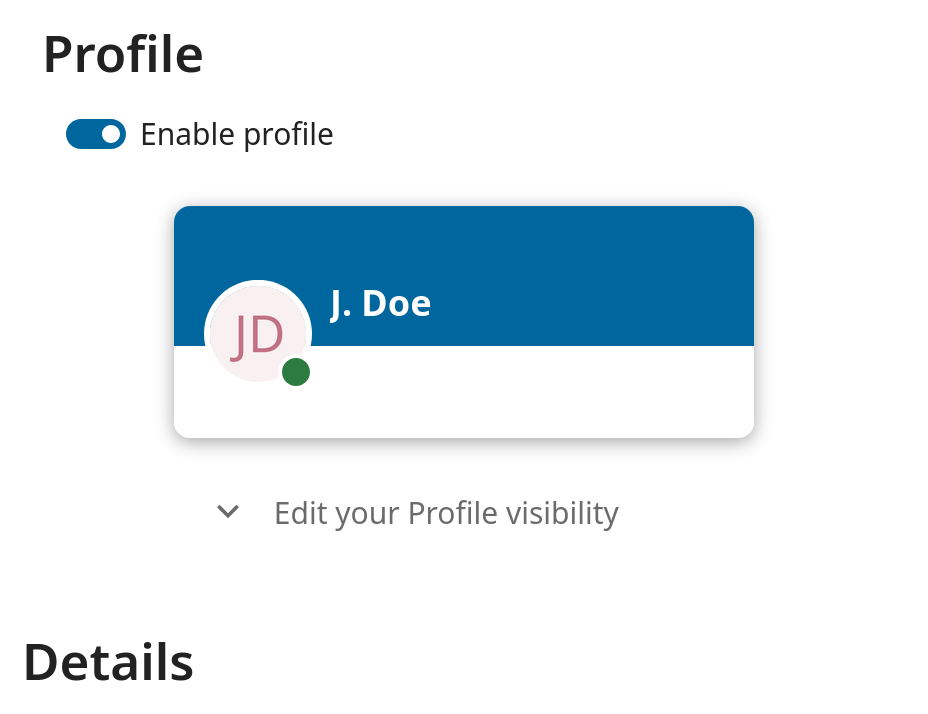
To restrict the visibility further, you can prevent guests from seeing your profile data by changing the profile visibility to logged-in users. In your personal settings, find the profile visibility button:
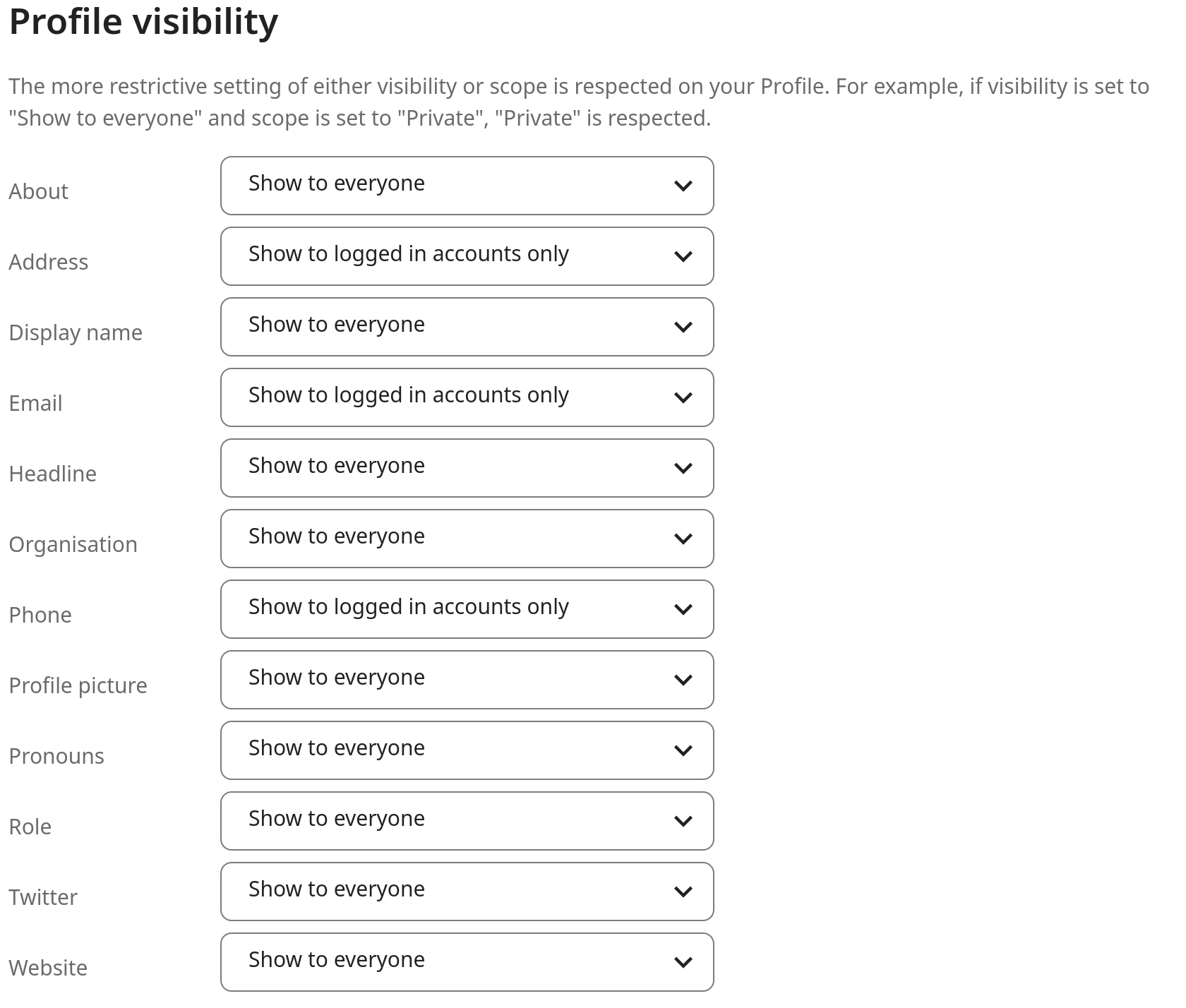
This allows you to configure the visibility for each profile attribute: