Call recording
The recording feature lets you:
Start and stop recordings during a call.
Record the video and audio stream of the speaker, as well as screen share.
Access, share and download recorded files for future reference or distribution.
Enabling this feature requires the recording server to be set up by the system administration.
Manage a recording
The moderator of the conversation can start a recording together with a call start or anytime during a call:
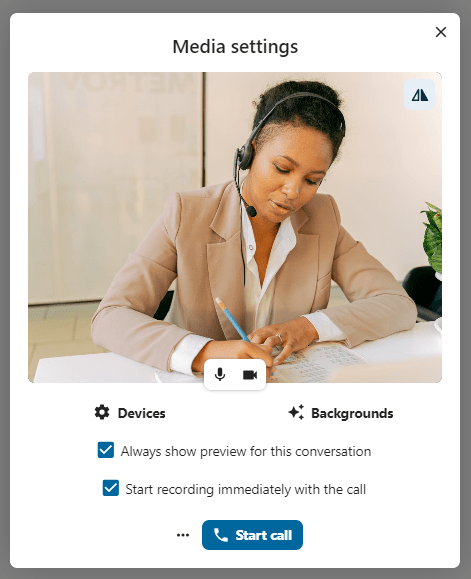
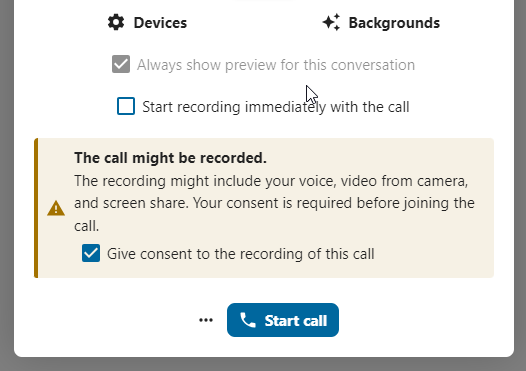
Before the call: tick the checkbox « Start recording immediately with the call » in « Media settings », then click on « Start call ».
During the call: click on the top-bar menu, then click « Start recording ».
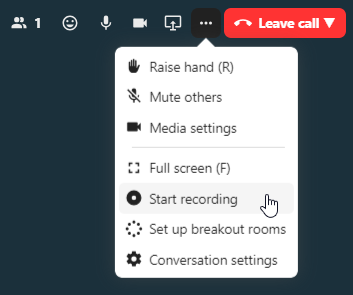
The recording will start shortly, and you will see a red indicator next to the call time. You can stop the recording at any time while the call is still ongoing by clicking on that indicator and selecting « Stop recording », or by using the same action in the top-bar menu. If you do not manually stop the recording, it will end automatically when the call ends.

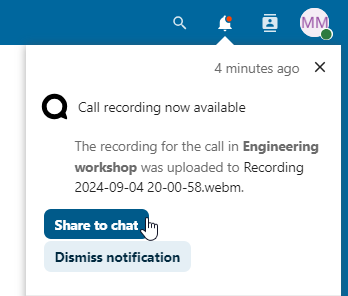
After stopping a recording, the server will take some time to prepare and save the recorded file. The moderator, who started the recording, receives a notification when the file is uploaded. From there, it can be shared in the chat.
Recording consent
For compliance with privacy regulations, it is possible to ask participants for consent to be recorded before joining the call. Administrators can configure this feature in several ways:
Disable consent completely.
Enable mandatory consent system-wide, requiring consent for all conversations.
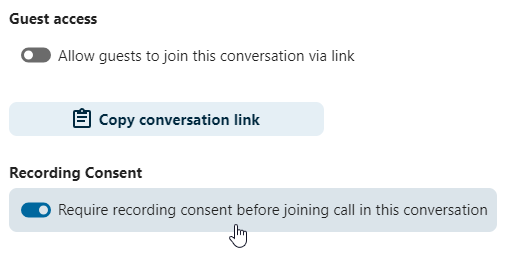
Allow moderators to configure this option on a conversation level. In such cases, moderators can access the conversation settings to configure this option accordingly:
If recording consent is enabled, every participant, including moderators, will see a highlighted section in the « Media settings » before joining a call. This section informs participants that the call may be recorded. To give explicit consent for recording, participants must check the box. If they do not give consent, they will not be allowed to join the call.
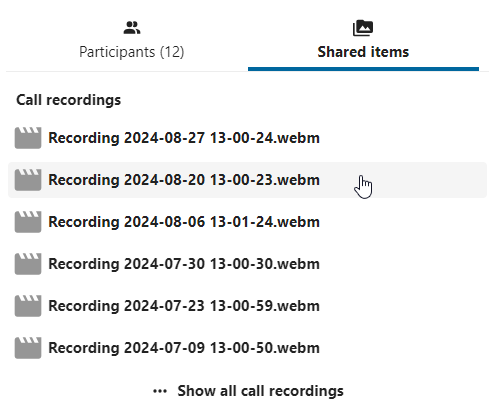
After a call ends, the recording is processed and saved to the chat as a shared file. Participants can play it back directly from the chat or download it from the conversation’s shared items.