macOS Virtual Files Client
On macOS, our client can also seamlessly integrate Nextcloud files into macOS as a file provider extension. Any newly configured Nextcloud account will have the integration enabled by default.
支持的功能
Keeping files or whole folders available offline
Freeing up local disk space by evicting local copies without deleting items
Intelligent and automatic local data eviction
File previews within Finder for files which are not downloaded yet
Support for Apple-specific formats, for example Pages, Numbers or Keynote bundles
Support for server-side file locking (if supported by the connected server)
支持"近端編輯"
Sharing with other users
Server-side actions integrated directly in Finder's context menu
Automatic discovery of server-side changes
配置
Virtual files-related settings can be adjusted on a per-account basis via the Nextcloud desktop client's settings window.
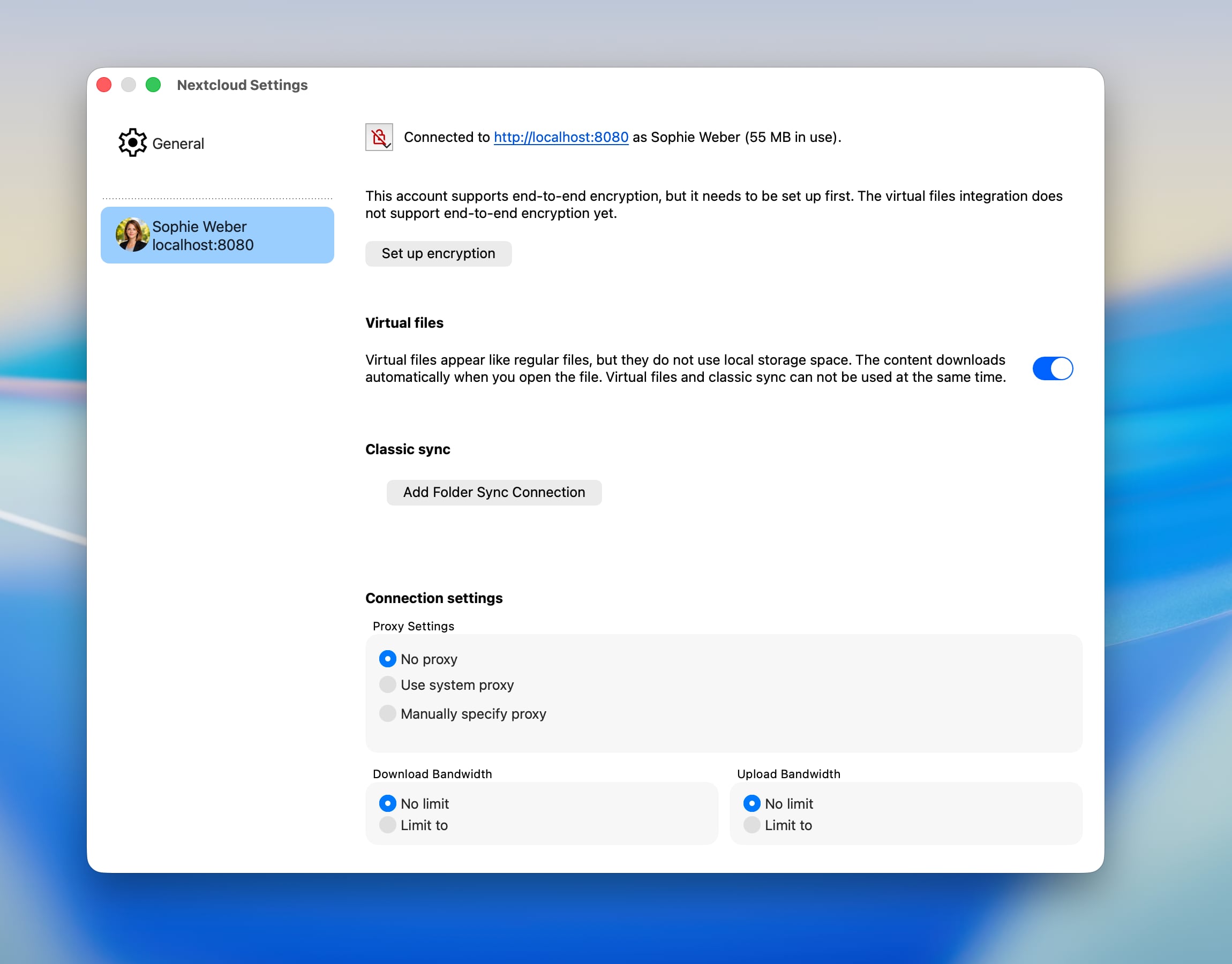
Here the integration into Finder can be enabled or disabled.
When disabling the file provider extension while still having unsynchronized changes, macOS will save the unsynchronized items in a folder that is automatically revealed after the integration is disabled.
Finder 集成
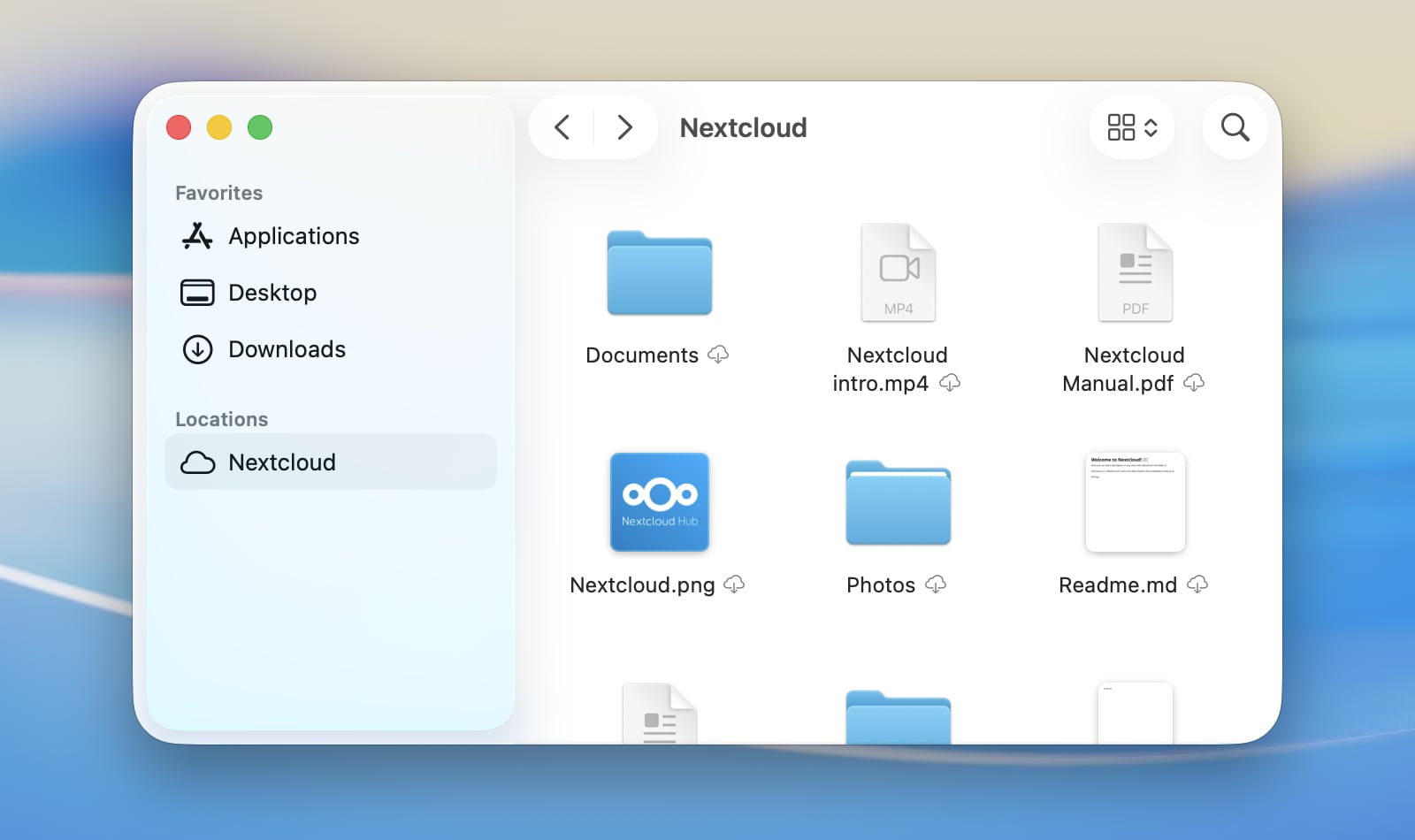
On macOS, remote storage like a Nextcloud files account appears like a dedicated location in the Finder sidebar. The actual location of the content on disk is defined by macOS.
Note
To accelerate server-side change detection, we recommend enabling the
notify_push app on your Nextcloud server. This app will notify
the desktop client of changes on the server as soon as they happen,
reducing the time it takes for changes to appear in Finder.
Otherwise the client needs to poll the server which will result in an
increased delay between a change on the server and its local visibility.
同步狀態指示器
Similar to classic synchronization folders, Finder displays status indicators next to items. Unlike the custom indicators in classic synchronization folders, these standardized indicators are provided by macOS to ensure a consistent appearance across all cloud storage apps which a user may use on their system.
Cloud with downward arrow: The item and its descendants are not downloaded yet. They can be downloaded, assuming a network connection is available.
Outlined cloud: The item is not fully uploaded yet in its current local state.
Strikethrough cloud: The item is excluded from synchronization.
Pie chart: The item is currently being uploaded or downloaded, and the progress is visualized.
Filled circle with downward arrow: The item is available offline and will be kept locally.
No icon: The item is available offline and up to date.
選項單操作
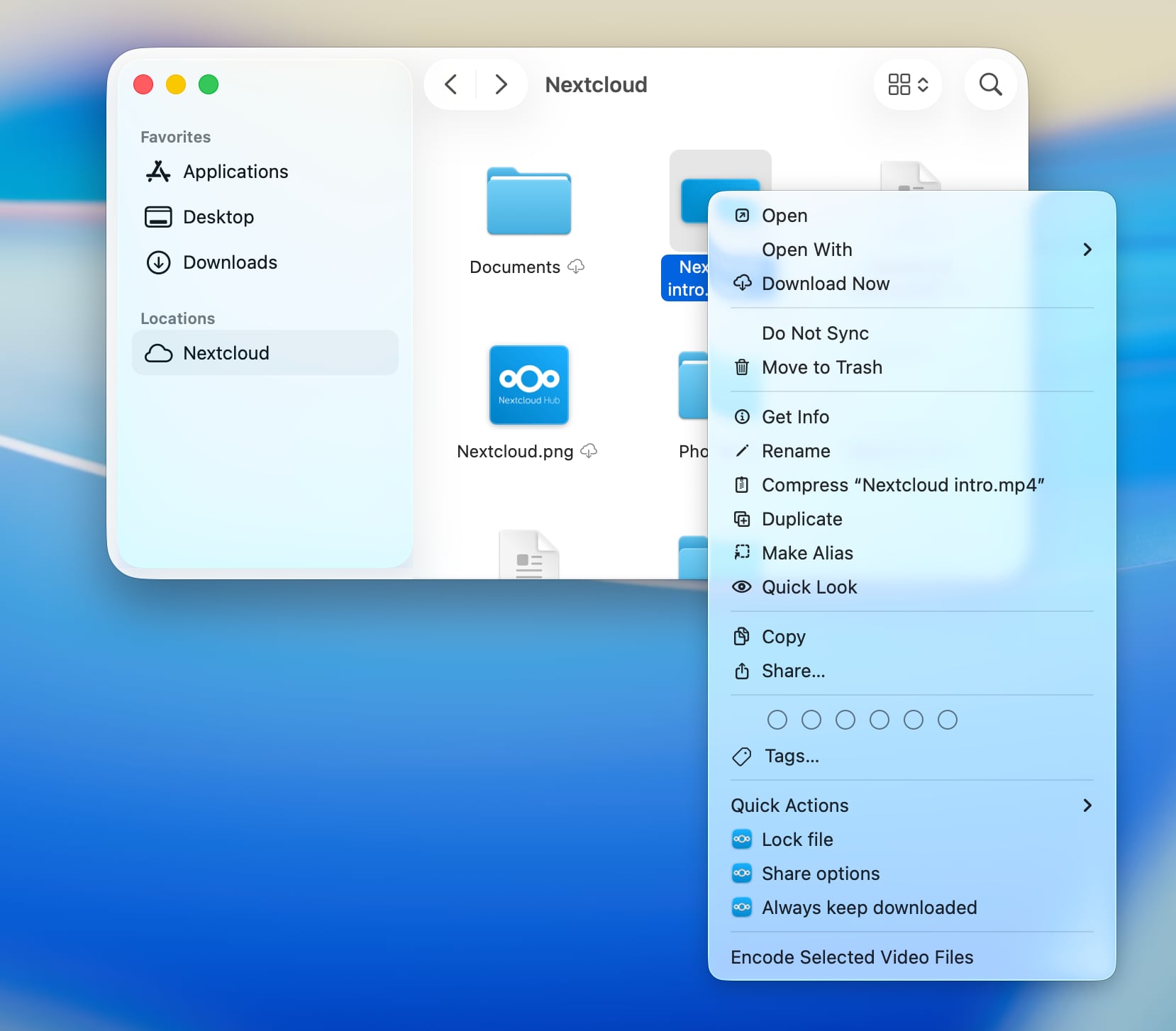
The file provider extension also provides special Nextcloud features through the context menu in Finder.
Keep Downloaded
Depending on the download state of a folder or file, the context menu will offer to always keep an item downloaded or free up local disk space by evicting the local copy while not actually deleting the item. This way, it stays available any time for download from the server.
Locking
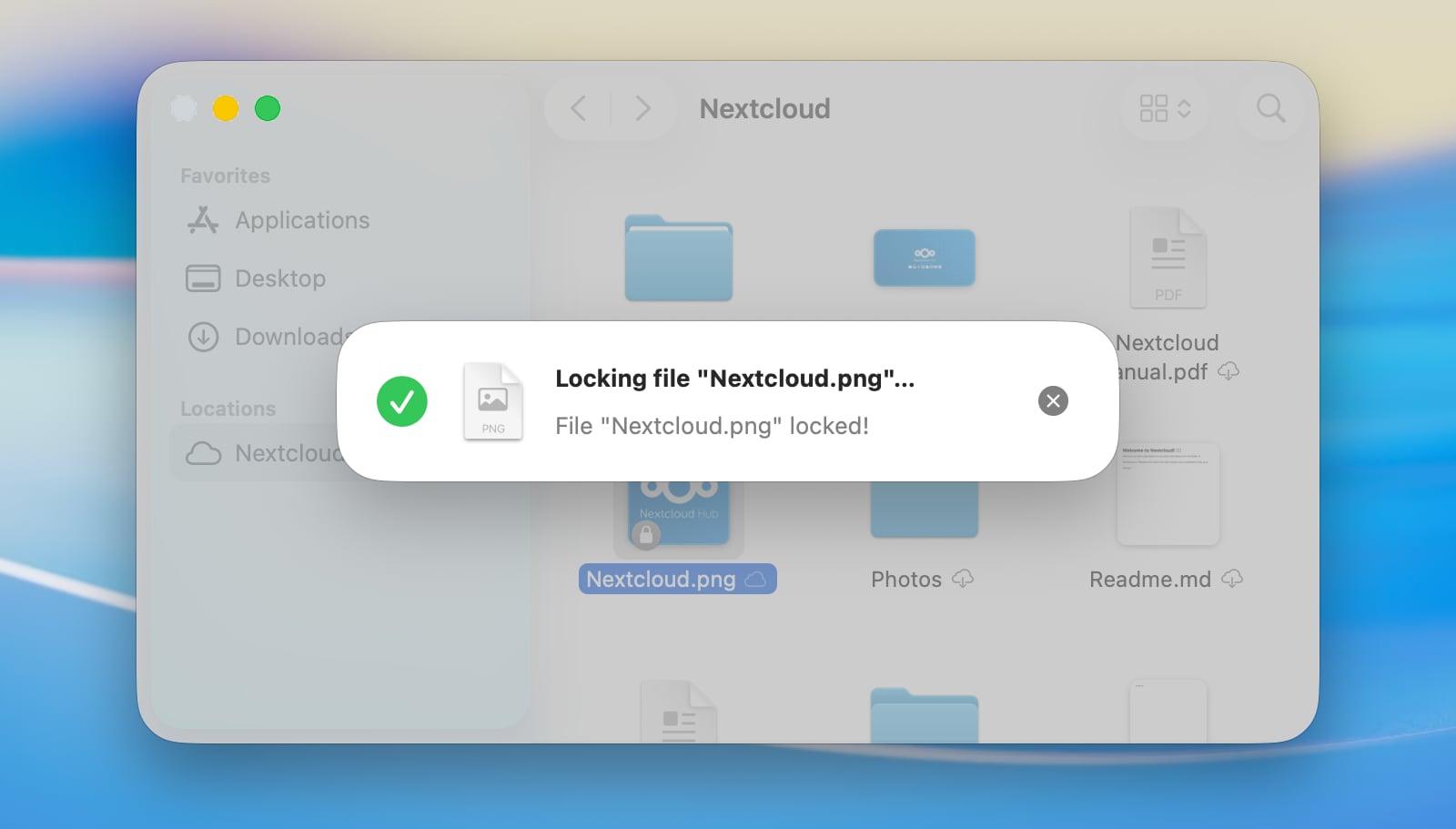
If the server supports file locking, the client will offer manual locking and unlocking of files in Finder.
Sharing
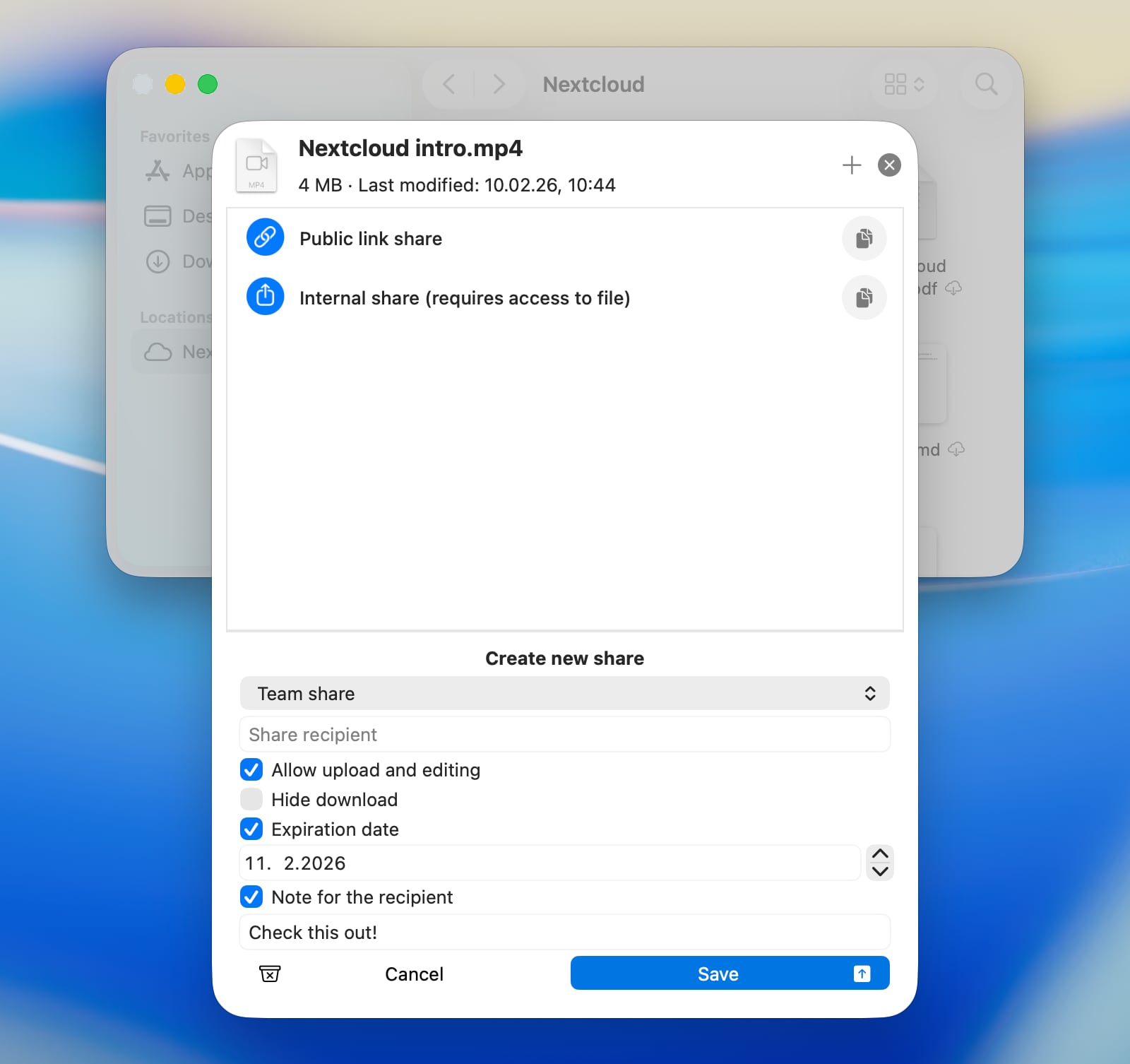
When the server supports sharing and the item is allowed to be shared, then you can create new shares or manage existing shares for an item directly from the context menu in Finder, as in the Nextcloud web interface.
File actions
If the server has apps installed which provide file actions for the selected file types, these actions will also be available in the context menu in Finder. This allows you to use server-side features of your Nextcloud instance directly from the Finder.
Known issues
macOS Extensions conflict
Due to technical limitations in macOS which are imposed by Apple, it is not possible to have the Finder integration for classic sync folders running in parallel to an enabled virtual files integration. This means that item decorations and context menu options will be unavailable for classic sync folders while the file provider extension is enabled.
Alias files
When opening a macOS alias file stored on Nextcloud for the first time on a device where it has not yet been downloaded, the file may open as a binary document in a text editor instead of jumping to its target. This happens because macOS decides how to open a file before downloading it, and alias files carry no recognisable file extension or type information on the server — the only way to identify them is by reading their content. Once the file has been opened or downloaded once, Nextcloud Desktop learns that it is an alias and stores that information locally, so all subsequent opens will work correctly. To avoid the issue entirely, right-click the alias file in Finder and choose Keep Downloaded before opening it for the first time.