メッセージの操作
メッセージの編集
メッセージやファイル共有時のキャプションは、送信から6時間以内であれば編集できます。

メッセージのピン留め
モデレータは、重要なメッセージを一定期間または不要になるまで会話内にピン留めできます。
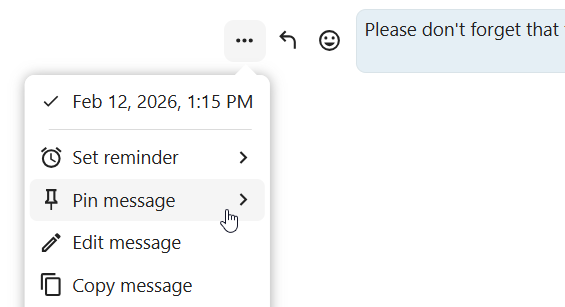
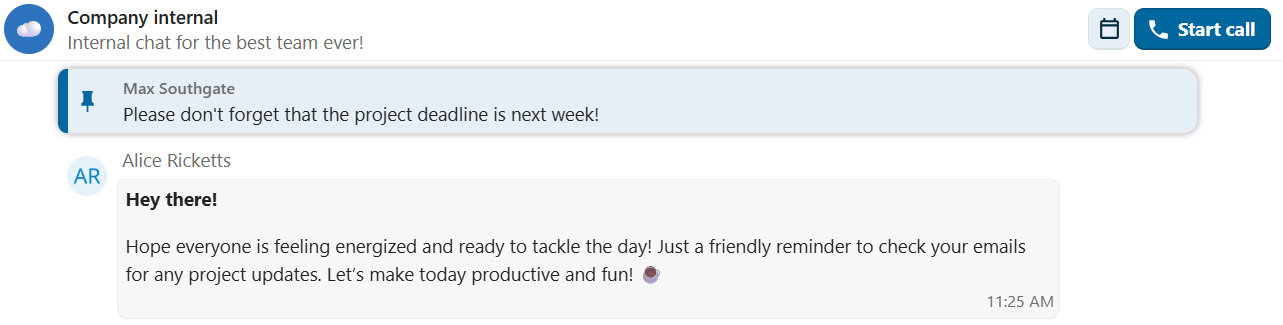
ピン留めされたメッセージは強調表示され、チャット上部やコンテンツサイドバー内の Shared items タブからアクセスできます。必要がなくなった場合は、クイックアクションで全員または自分だけのピンを解除できます。
メッセージのリマインダー設定
特定のメッセージにリマインダーを設定できます。後で通知を受け取りたい重要なメッセージがある場合、そのメッセージにマウスポインタをあわせてリマインダーアイコンをクリックしてください。

サブメニューで後から通知を受け取る時刻を選択できます。

... メニューからメッセージを他の会話に転送したり、自分専用の Note to self に送ったりできます。
会話内メッセージの検索
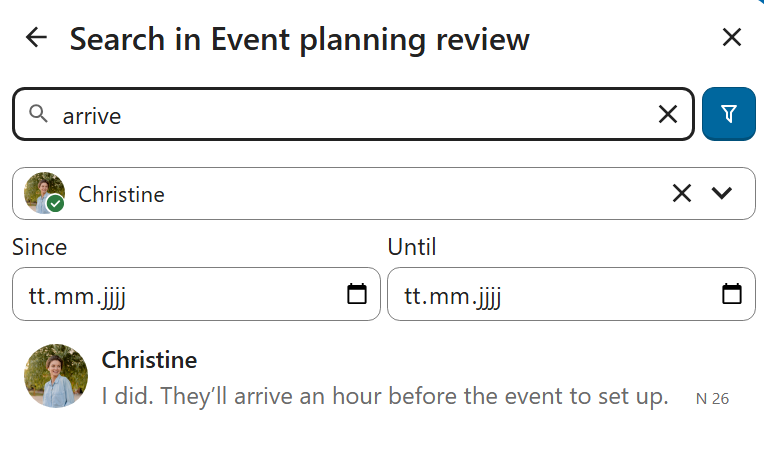
全体検索に加えて、特定の会話内でメッセージを検索することもできます。会話のコンテンツサイドバーで検索アイコンをクリックすると検索タブが開きます。
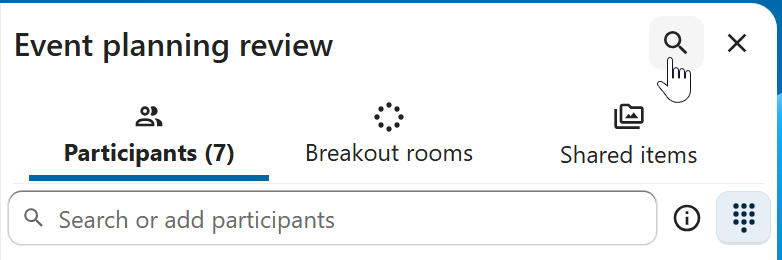
日付範囲や送信者などのフィルターを使って検索結果を絞り込めます。
スレッド付きメッセージ
会話の中でスレッドを作成して議論を整理できます。新規メッセージの追加アクションからスレッド作成機能が利用できます。
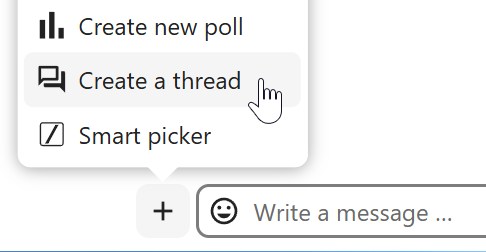
スレッドにはタイトルや説明を追加して、ディスカッションを開始できます。

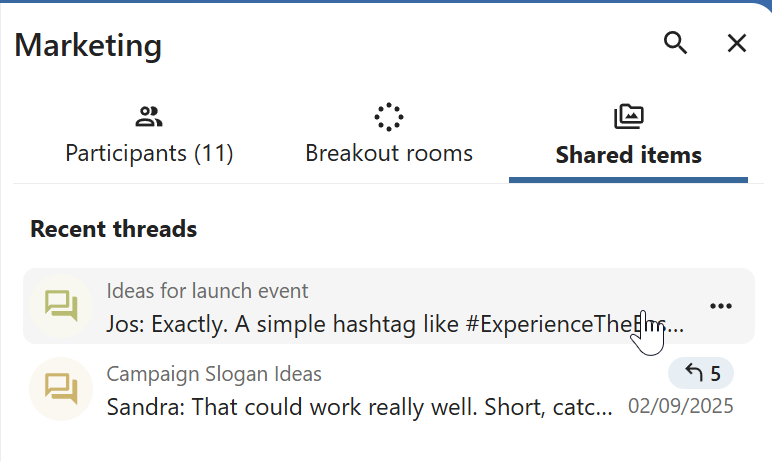
スレッド内のすべての返信は、メッセージの返信ボタンやコンテンツサイドバーの Shared items タブから閲覧できます。
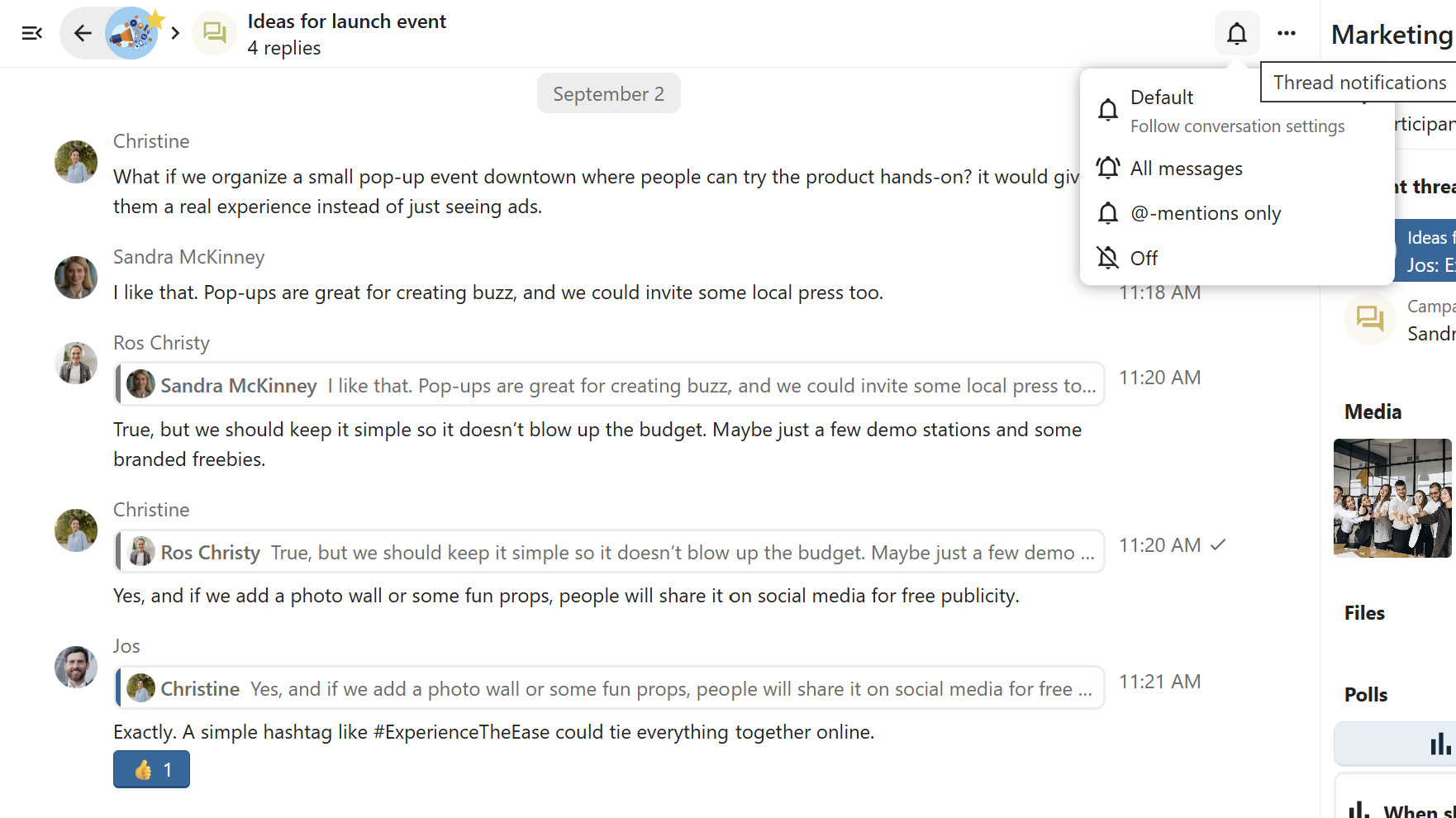
スレッドの購読を行うと新しい返信の通知が届きます。スレッド画面やサイドバーから購読登録が可能です。
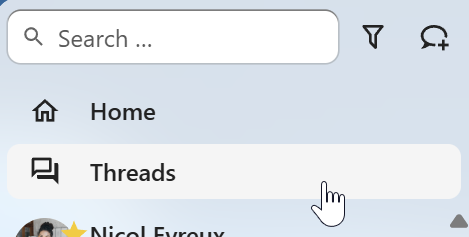
購読したスレッドはナビゲーションバーの Threads から簡単にアクセスできます。
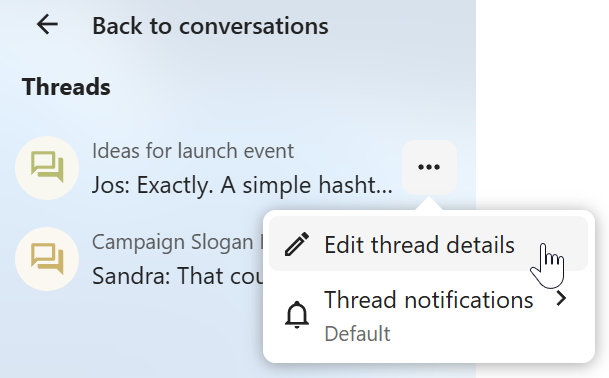
スレッドのタイトル編集は、スレッド本体やサイドバーから行えます。
Private replies
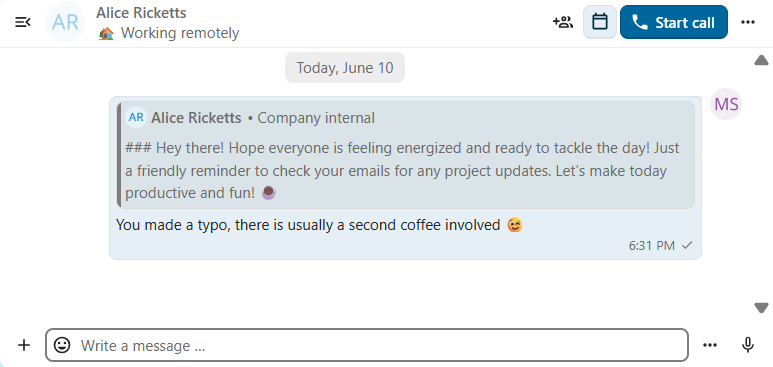
Private replies are messages that are forwarded directly to a one-to-one conversation between you and specific message author, to maintain privacy where it’s needed.
In group and public conversations, select a message you want to reply to privately
In message actions, select
Reply privatelyA one-to-one conversation window opens with the original message quoted
Add your response and send a message
The reply provides a full context of a quoted message — including the original sender’s name, original conversation context, and backlink.
Message reactions
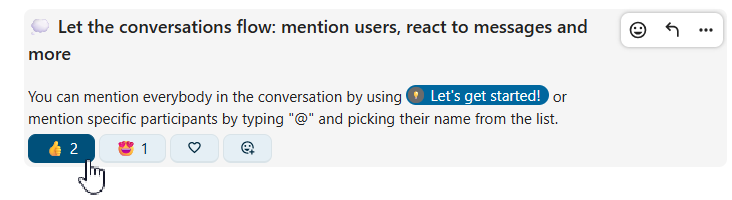
Add emoji reactions to messages to quickly express agreement, celebrate, or indicate emotions without typing full responses.
Hover over a message in the chat
Click the
Add reactionbutton from message actionsSelect an emoji from the list of frequently used or full picker
You can hover over a reaction to see other users who reacted with it. Click one of the existing reactions to react with the same emoji! You can click it again to remove your reaction from the message.