Gravação de chamadas
A função de gravação permite que você:
Inicie e interrompa as gravações durante uma chamada.
Grave o fluxo de vídeo e áudio do orador, bem como o compartilhamento de tela.
Acesse, compartilhe e baixe arquivos gravados para referência futura ou distribuição.
Para ativar esse recurso, é necessário que o servidor de gravação seja configurado pela administração do sistema.
Gerenciar uma gravação
O moderador da conversa pode iniciar uma gravação ao iniciar a chamada ou a qualquer momento durante a chamada:
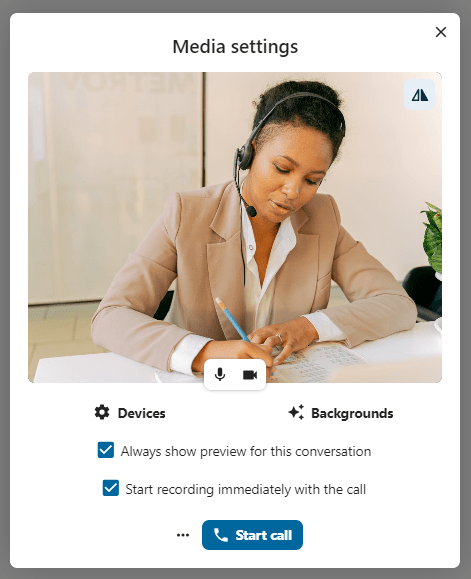
Antes da chamada: marque a caixa de seleção “Iniciar a gravação imediatamente com a chamada” em “Configurações de mídia” e, em seguida, clique em “Iniciar chamada”.
Durante a chamada: clique no menu da barra superior e, em seguida, clique em “Iniciar gravação”.
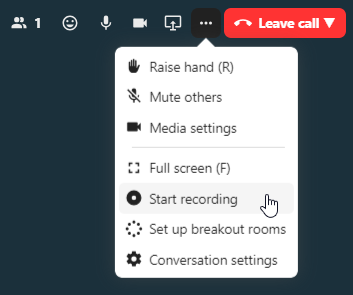
A gravação começará em breve, e você verá um indicador vermelho ao lado do tempo da chamada. Você pode interromper a gravação a qualquer momento enquanto a chamada estiver em andamento clicando nesse indicador e selecionando “Encerrar gravação”, ou realizando a mesma ação no menu da barra superior. Se você não interromper a gravação manualmente, ela terminará automaticamente quando a chamada terminar.

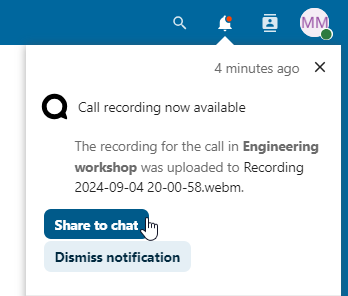
Após encerrar uma gravação, o servidor levará algum tempo para preparar e salvar o arquivo gravado. O moderador que iniciou a gravação recebe uma notificação quando o arquivo é carregado. A partir daí, ele pode ser compartilhado no bate-papo.
Consentimento para gravação
Para cumprir as normas de privacidade, é possível solicitar aos participantes o consentimento para serem gravados antes de entrarem na chamada. Os administradores podem configurar esse recurso de várias maneiras:
Desativar completamente o consentimento.
Ativar o consentimento obrigatório em todo o sistema, exigindo consentimento para todas as conversas.
Permitir que os moderadores configurem essa opção no nível da conversa. Nesses casos, os moderadores podem acessar as configurações da conversa para definir essa opção conforme necessário:
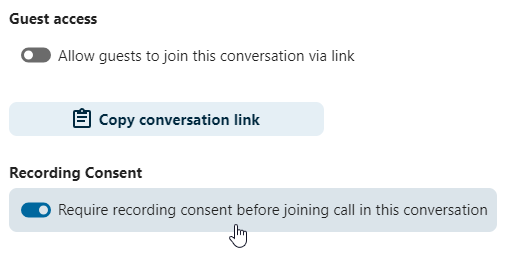
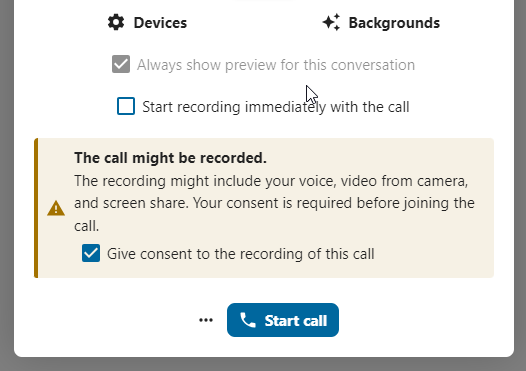
Se o consentimento para gravação estiver ativado, todos os participantes, incluindo os moderadores, verão uma seção destacada nas “Configurações de mídia” antes de entrarem na chamada. Essa seção informa aos participantes que a chamada poderá ser gravada. Para dar consentimento explícito para a gravação, os participantes devem marcar a caixa de seleção. Se não derem consentimento, não poderão entrar na chamada.
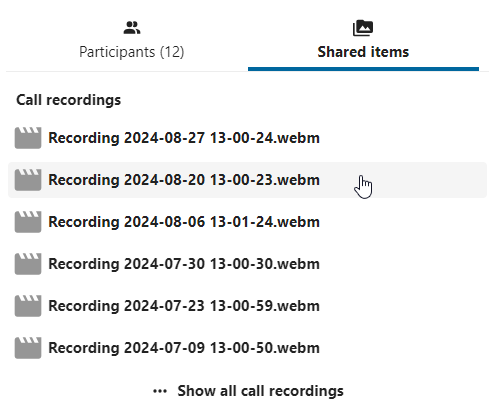
Após o término da chamada, a gravação é processada e salva no bate-papo como um arquivo compartilhado. Os participantes podem reproduzi-la diretamente no chat ou baixá-la a partir dos itens compartilhados da conversa.