Anexos
Compartilhamento de arquivos em um bate-papo
Você pode compartilhar arquivos em um bate-papo de três maneiras.
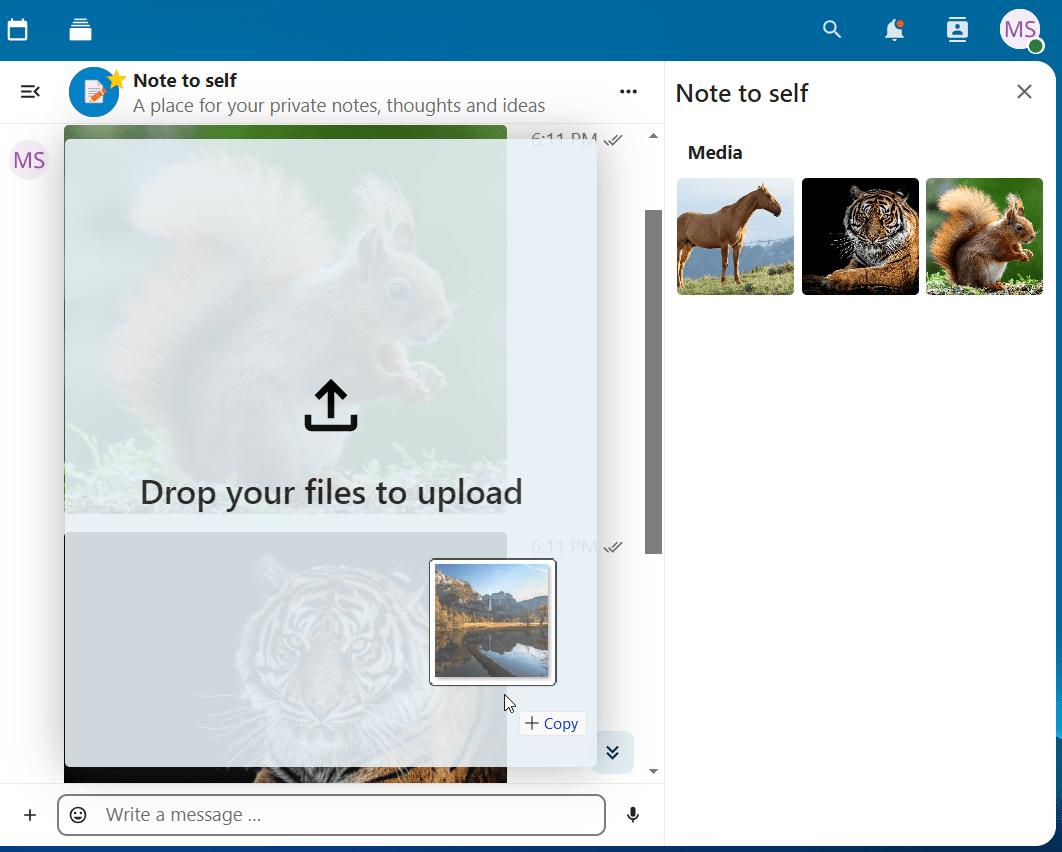
Primeiro, basta arrastá-los e soltá-los no bate-papo.
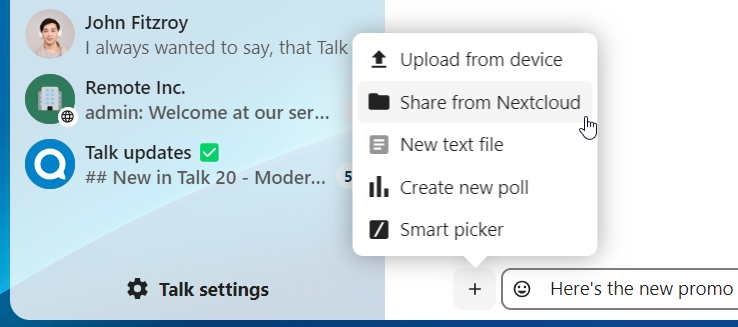
Em segundo lugar, você pode selecionar um arquivo do Nextcloud Arquivos ou de um gerenciador de arquivos clicando no ícone do clipe de papel e escolhendo de onde deseja selecionar o arquivo.
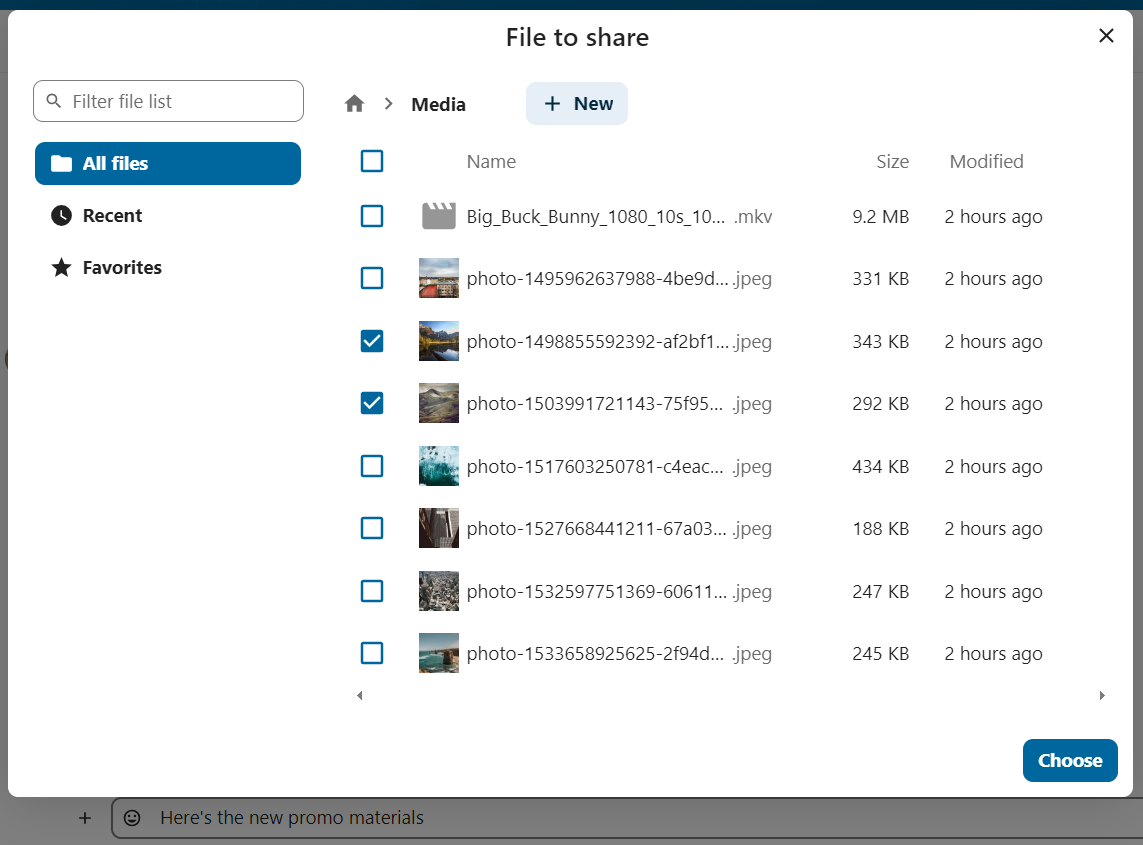
Você pode adicionar mais arquivos até terminar e decidir compartilhá-los. Também é possível adicionar uma legenda aos arquivos compartilhados, fornecendo uma breve descrição ou contexto.
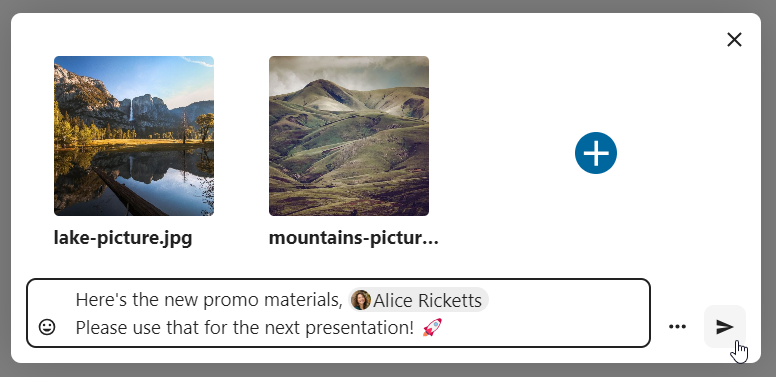
Todos os usuários poderão clicar nos arquivos para visualizá-los, editá-los ou baixá-los, independentemente de possuírem uma conta de usuário. Os usuários com conta receberão o arquivo automaticamente, enquanto os usuários convidados externos receberão um link público para acessá-lo.
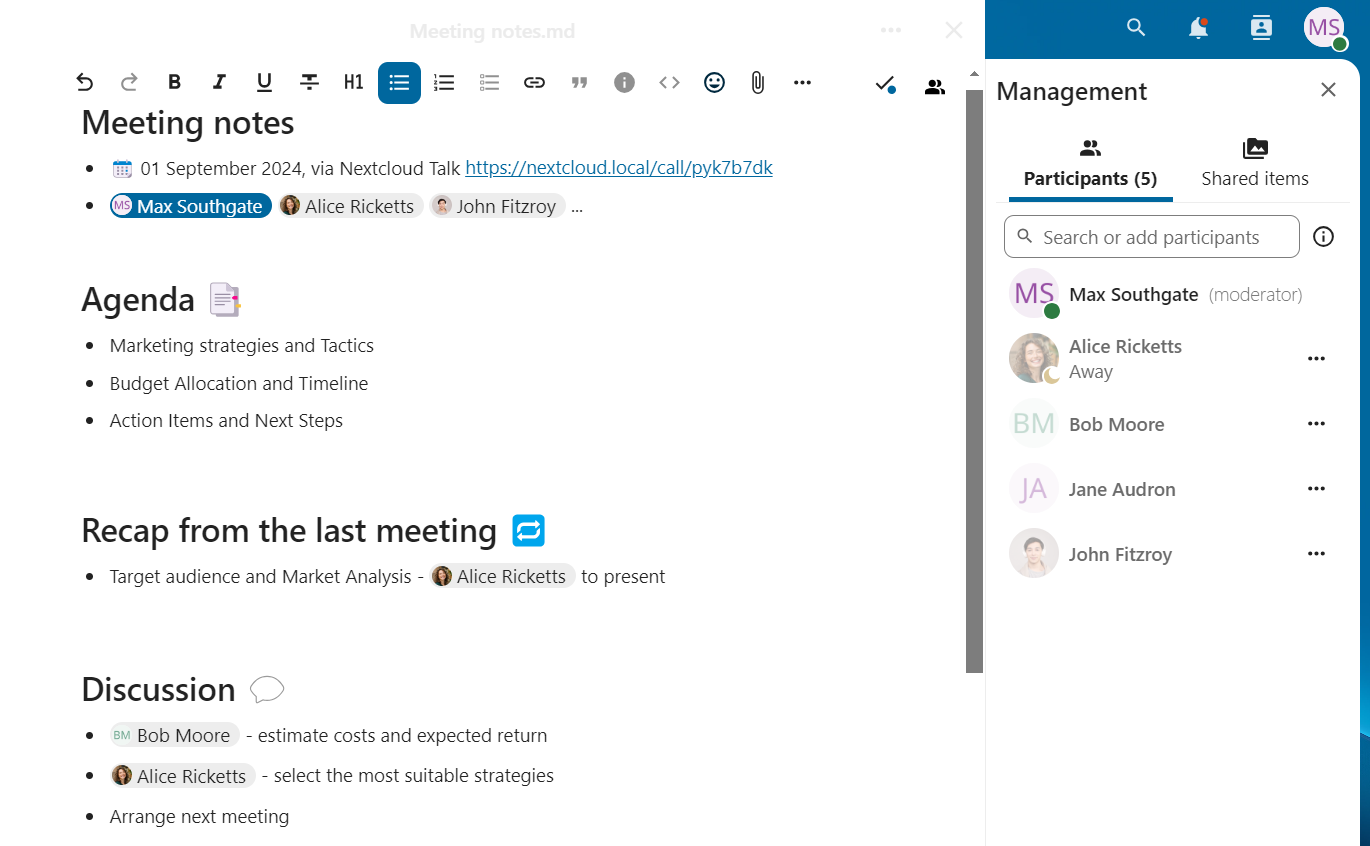
Enquetes no bate-papo
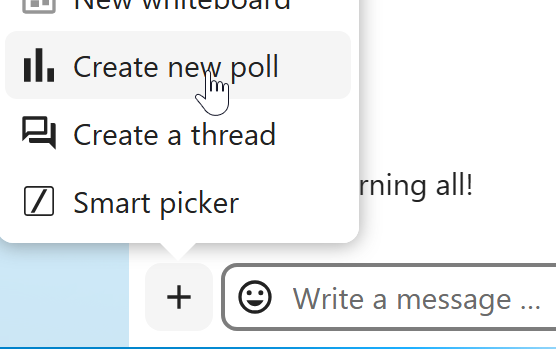
Você pode criar uma enquete em conversas em grupo a partir das ações adicionais da nova mensagem.
Uma enquete tem duas configurações:
Enquetes anônimas: Os participantes não podem ver quem votou em qual opção.
Permitir múltiplas escolhas: Os participantes podem selecionar mais de uma opção.
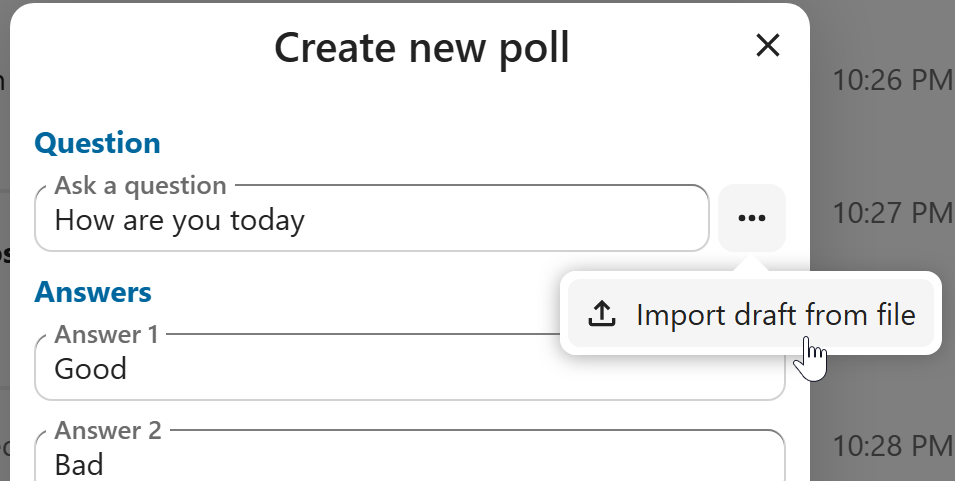
Você também pode importar enquetes para preenchimento automático e exportá-las como arquivos JSON para salvá-las localmente.
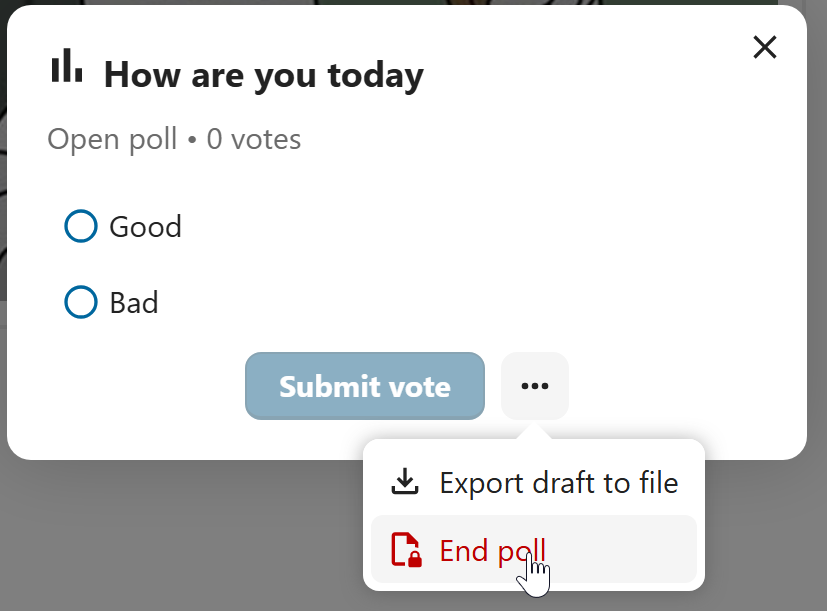
Você pode encerrar uma enquete na janela de diálogo da enquete.
Como moderador, você pode criar a enquete diretamente ou salvá-la como rascunho para editá-la mais tarde.
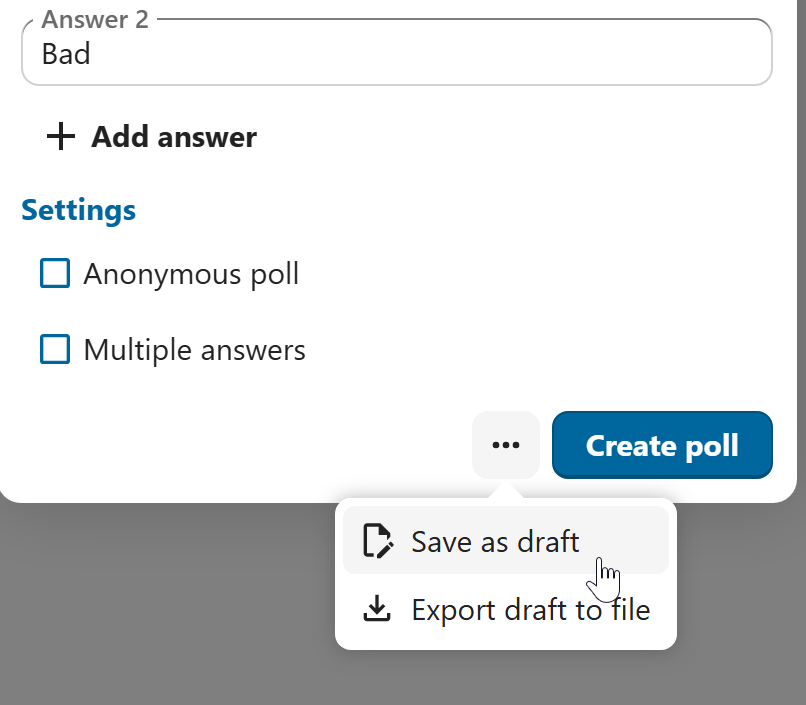
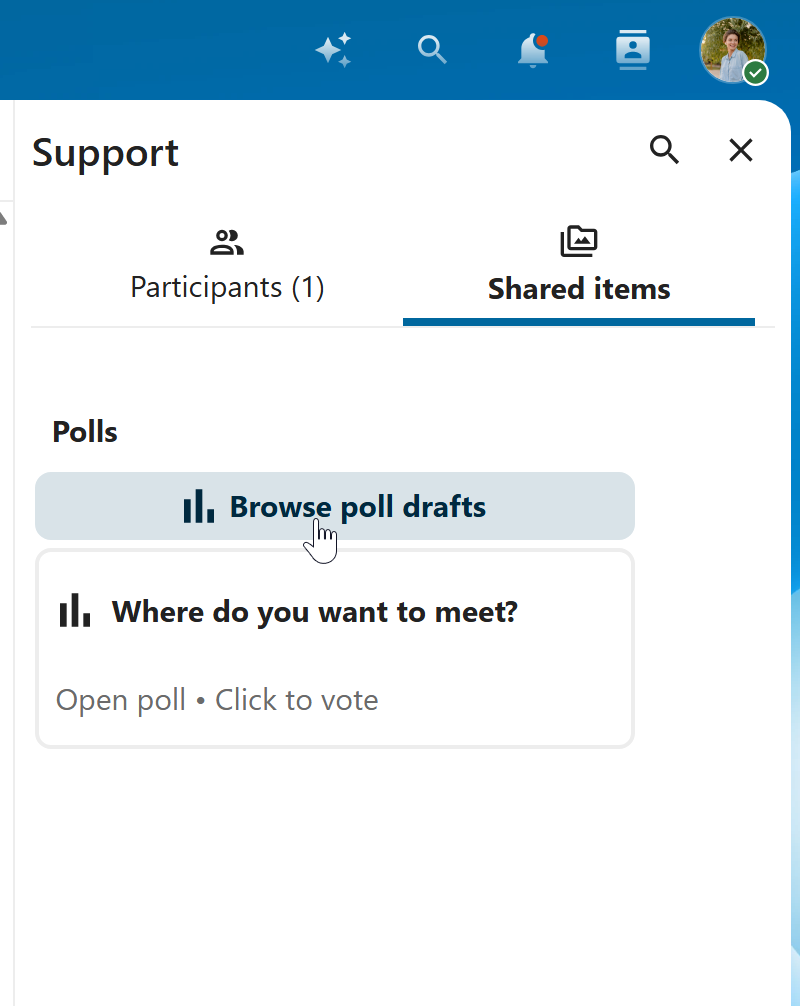
Você pode encontrar rascunhos de enquetes na aba Itens compartilhados ou ao lado do campo de entrada do título da enquete.